Free tool
Revit Keyboard Shortcuts
Revit shortcuts are short letter sequences: type W then A for Wall, M then V for Move, V then G for Visibility/Graphics. Search the default list below by command or keys, then learn how to change them with the KS dialog and share them as an XML file.
Revit shortcut finder
107 shortcuts shown. Press the letters one after another; no Enter key.
- WallModelingWA
- DoorModelingDR
- WindowModelingWN
- Place a componentModelingCM
- ColumnModelingCL
- GridModelingGR
- LevelModelingLL
- RoomModelingRM
- Reference planeModelingRP
- Structural floorModelingSB
- Structural beamModelingBM
- Structural braceModelingBR
- Beam systemModelingBS
- Wall foundationModelingFT
- Model lineModelingLI
- Create groupModelingGP
- Edit groupModelingEG
- UngroupModelingUG
- Add to groupModelingAP
- Remove from groupModelingRG
- Aligned dimensionAnnotateDI
- Detail lineAnnotateDL
- TextAnnotateTX
- Tag by categoryAnnotateTG
- Tag roomAnnotateRT
- Spot elevationAnnotateEL
- Find and replaceAnnotateFR
- MoveModifyMV
- CopyModifyCOorCC
- RotateModifyRO
- Mirror, pick axisModifyMM
- Mirror, draw axisModifyDM
- ArrayModifyAR
- AlignModifyAL
- OffsetModifyOF
- Trim/extend to cornerModifyTR
- Split elementModifySL
- Split faceModifySF
- ScaleModifyRE
- PinModifyPN
- UnpinModifyUP
- DeleteModifyDE
- Create similarModifyCS
- Match type propertiesModifyMA
- PaintModifyPT
- LineworkModifyLW
- Modify (selection mode)ModifyMD
- Select all instances in the projectModifySA
- Repeat last commandModifyRC
- Cancel group editingModelingCG
- Visibility/GraphicsView and visibilityVGorVV
- Override graphics in view by elementView and visibilityEOD
- Hide elements in viewView and visibilityEH
- Hide category in viewView and visibilityVH
- Hide element (View Control Bar)View and visibilityHH
- Hide category (View Control Bar)View and visibilityHC
- Isolate elementView and visibilityHI
- Isolate categoryView and visibilityIC
- Reset temporary hide/isolateView and visibilityHR
- Toggle reveal hidden elements modeView and visibilityRH
- Unhide elementView and visibilityEU
- Unhide categoryView and visibilityVU
- Toggle reveal constraintsView and visibilityCX
- Graphic display optionsView and visibilityGD
- WireframeView and visibilityWF
- Hidden lineView and visibilityHL
- Shaded with edgesView and visibilitySD
- Thin linesView and visibilityTL
- RenderView and visibilityRR
- Toggle the Properties paletteView and visibilityPPorCtrl+1orVP
- Tile windowsView and visibilityWT
- Cascade windowsView and visibilityWC
- Zoom to fitZoom and navigationZEorZForZX
- Zoom all to fitZoom and navigationZA
- Zoom in regionZoom and navigationZRorZZ
- Zoom out (2x)Zoom and navigationZOorZV
- Previous pan/zoomZoom and navigationZPorZC
- Zoom to sheet sizeZoom and navigationZS
- 2D modeZoom and navigation32
- Fly modeZoom and navigation3F
- Object modeZoom and navigation3O
- Walk modeZoom and navigation3W
- Snap to endpointsSnapsSE
- Snap to midpointsSnapsSM
- Snap to centersSnapsSC
- Snap to intersectionsSnapsSI
- Snap to nearestSnapsSN
- Snap to perpendicularSnapsSP
- Snap to quadrantsSnapsSQ
- Snap to tangentsSnapsST
- Snap to pointsSnapsSX
- Snap to work plane gridSnapsSW
- Snaps offSnapsSO
- Keyboard Shortcuts dialogSettings and collaborationKS
- Project unitsSettings and collaborationUN
- Sun settingsSettings and collaborationSU
- Editing requestsSettings and collaborationER
- Reload latest (worksharing)Settings and collaborationRLorRW
- DuctMEPDT
- PipeMEPPI
- ConduitMEPCN
- Cable trayMEPCT
- Air terminalMEPAT
- Lighting fixtureMEPLF
- Mechanical equipmentMEPME
- Plumbing fixtureMEPPX
- SprinklerMEPSK
The most used Revit shortcuts
Almost every Revit shortcut is two letters that you type in order, with no Enter key. These are the ones most drafters use every hour. The finder above has the full list.
| Keys | Command | Use it to |
|---|---|---|
| WA | Wall | Draw a wall |
| DR / WN | Door / Window | Place a door or window in a wall |
| MV | Move | Move the selected elements |
| CO or CC | Copy | Copy the selected elements |
| RO | Rotate | Turn elements around a point |
| AL | Align | Line up elements with a reference |
| TR | Trim/extend to corner | Clean up a wall or line corner |
| OF | Offset | Copy a line or wall at a set distance |
| DI | Aligned dimension | Add a dimension |
| VG or VV | Visibility/Graphics | Turn categories on or off in a view |
| HH / HI | Hide / isolate element | Temporarily hide or isolate (HR resets) |
| ZE | Zoom to fit | Fit the model in the window |
| RC | Repeat last command | Run the last command again |
| KS | Keyboard Shortcuts | Open the dialog to edit shortcuts |
How Revit keyboard shortcuts work
In Revit, every keyboard shortcut is a sequence of keys pressed one after another. Press the last key and the tool starts, so there is no Enter to hit. Many shortcuts have an alternative, shown as "or" in the finder: Copy works with CO or CC, and the Properties palette opens with PP, VP or Ctrl+1.
As you type, the status bar shows the first matching tool. Press the down or right arrow to cycle through other matches, and the Spacebar to run the one on screen without typing the rest. This does not apply to shortcuts that use Ctrl, Shift or Alt.
If a command has a shortcut, it appears in the tool's tooltip on the ribbon. If the tooltip shows none, the command has no shortcut yet. Revit only runs on Windows, so there is no separate Mac list.
How to see and change shortcuts with KS
- Type KS, or go to the View tab, Windows panel, User Interface drop-down, Keyboard Shortcuts.
- Search for the command in the search box. Use the Filter to show All Defined, All Not Defined or All Reserved commands.
- Select the command and click the "Press new keys" field.
- Press the keys you want and click Assign. You can give one command several shortcuts.
- To remove one, select the shortcut in the Shortcuts column and click Remove.
Reserved shortcuts show in gray and cannot be reassigned. If the "Press new keys" field is gray, the command is reserved.
Rules for custom shortcuts
- A shortcut can be up to 5 unique letters or numbers.
- You can use Ctrl, Shift and Alt with one letter or number, such as Ctrl+Shift+D. If a shortcut includes Alt, it must also include Ctrl or Shift.
- The same shortcut can be assigned to more than one tool. Revit then lists the matches in the status bar so you can choose.
- Reserved keys cannot be assigned.
Export, import and reset Revit shortcuts
In the Keyboard Shortcuts dialog, click Export to save your shortcuts to an XML file. Use it as a backup, open it in a spreadsheet to print a quick-reference sheet, or send it to a colleague.
To load a file from another person or an older Revit version, click Import and choose a text or XML file. Revit asks whether to overwrite your shortcuts or merge the new ones with them.
Revit stores your changes in a file named KeyboardShortcuts.xml under %APPDATA%\Autodesk\Revit\ in a folder for your version, and it appears only after you change a shortcut. To go back to the defaults, delete that file.
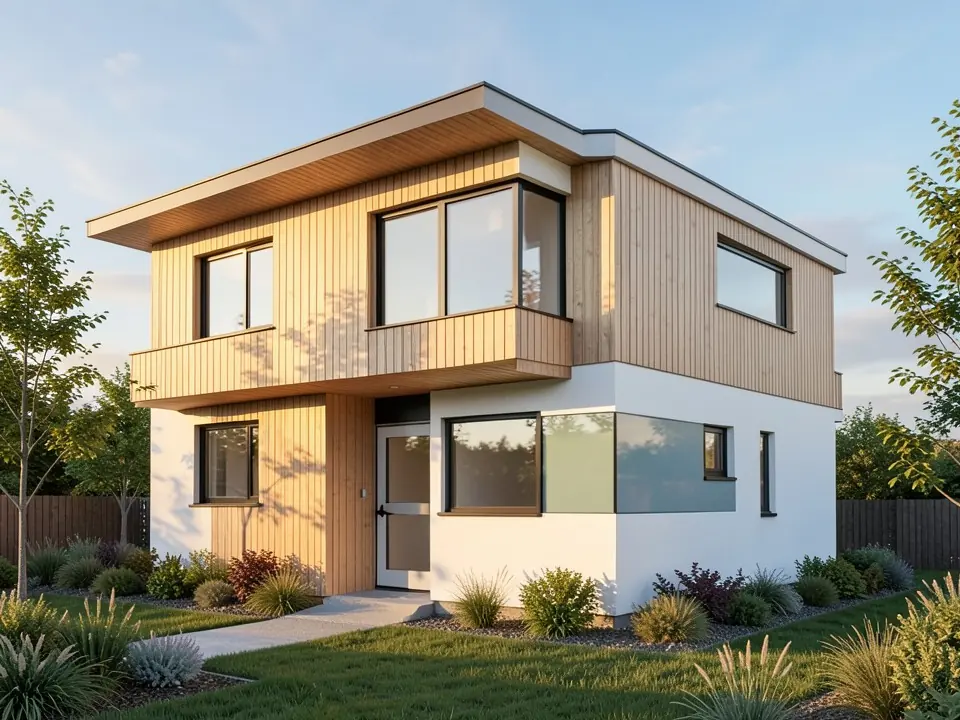
Done modeling? Render your Revit view with AI
Export a 3D or camera view from Revit and upload it. Our AI adds materials, daylight and landscaping and returns a photoreal image in your browser, with no plugin or render engine.
Try Revit to renderSign in with Google or email to render. New accounts get 1 free render (watermarked).
Frequently asked questions
How do I see all keyboard shortcuts in Revit?
Type KS, or open the View tab, Windows panel, User Interface, Keyboard Shortcuts. The dialog lists every command with its shortcut. Autodesk also publishes the default list as a PDF and a spreadsheet on its Help site.
How do I create a custom keyboard shortcut in Revit?
Open the Keyboard Shortcuts dialog with KS, select the command, press your keys in the "Press new keys" field and click Assign. A shortcut can have up to 5 unique letters or numbers.
What is the shortcut for Wall, Move and Copy in Revit?
Wall is WA, Move is MV, and Copy is CO or CC. Type the two letters one after the other. Rotate is RO, Align is AL and Trim/extend to corner is TR.
Why does a Revit shortcut not work?
Check that you typed the keys in sequence and not together. A command with no shortcut will not respond, and a custom shortcut may clash with a reserved key. Open KS and search the command to see what is assigned.
How do I reset Revit shortcuts to default?
Close Revit, then delete the KeyboardShortcuts.xml file in the %APPDATA%\Autodesk\Revit\ folder for your version. Revit uses the defaults next time you start it.
Can I share my Revit shortcuts with a colleague?
Yes. Use Export in the Keyboard Shortcuts dialog to save an XML file. Your colleague opens the same dialog, clicks Import and chooses to overwrite or merge.
More free tools for architects and designers
- Revit to render
- Revit vs ArchiCAD
- ArchiCAD to render
- Blueprint symbols
- Tile calculator
- Roof pitch calculator
- Architectural scale converter
- Cost to build a house calculator
- King size bed dimensions
- Standard door sizes
- Standard window sizes
- Bathroom vanity height
- Two car garage dimensions
- 1200 sq ft house plans
- Free house plans
Sources: Default shortcuts are taken from Autodesk's own Revit keyboard shortcut list; the KS, import, export, reset and rules steps follow Autodesk Help, Revit "Keyboard Shortcuts" topics (2026). Revit is a product of Autodesk. We are not affiliated with Autodesk. Shortcuts can differ if your office has customized them.