SketchUp to render
SketchUp to Render: Turn Your Model into a Photoreal Image
Export or screenshot a view of your SketchUp model, upload it, and ArchitecturesAI turns the plain white faces and black edges into a photorealistic render with real materials, daylight, sky and planting. The camera angle, massing and openings of your model stay in place, so the image still shows your design. It runs in the browser: no plugin, no render engine and no graphics card needed.
Render your SketchUp modelSign in with Google or email to render. New accounts get 2 free renders (watermarked); free renders are not available in India on this site.
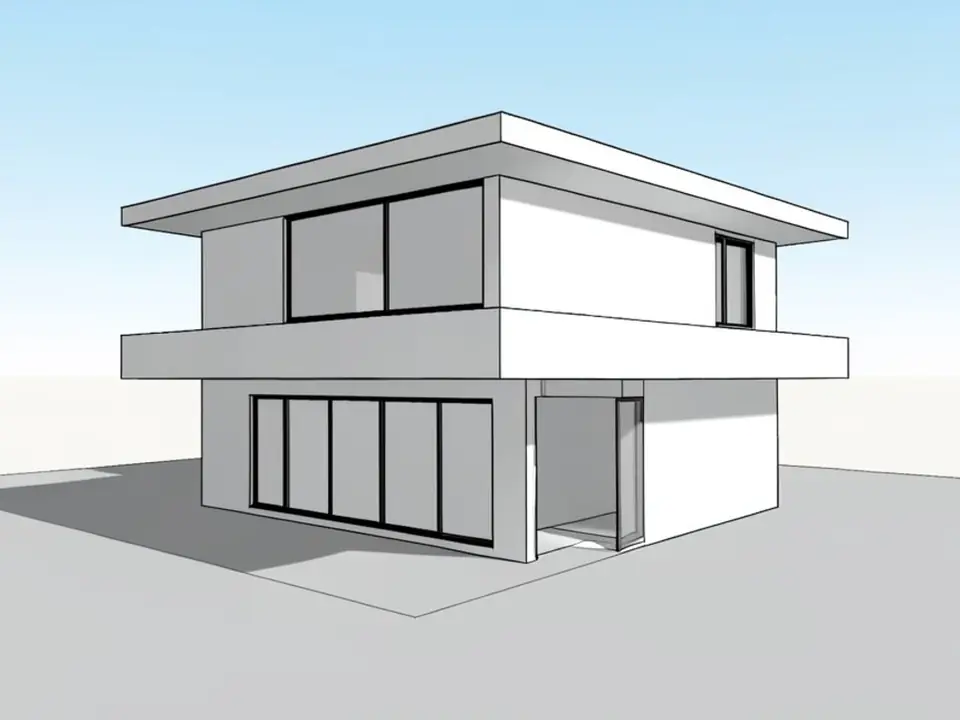
Before: SketchUp-style model view
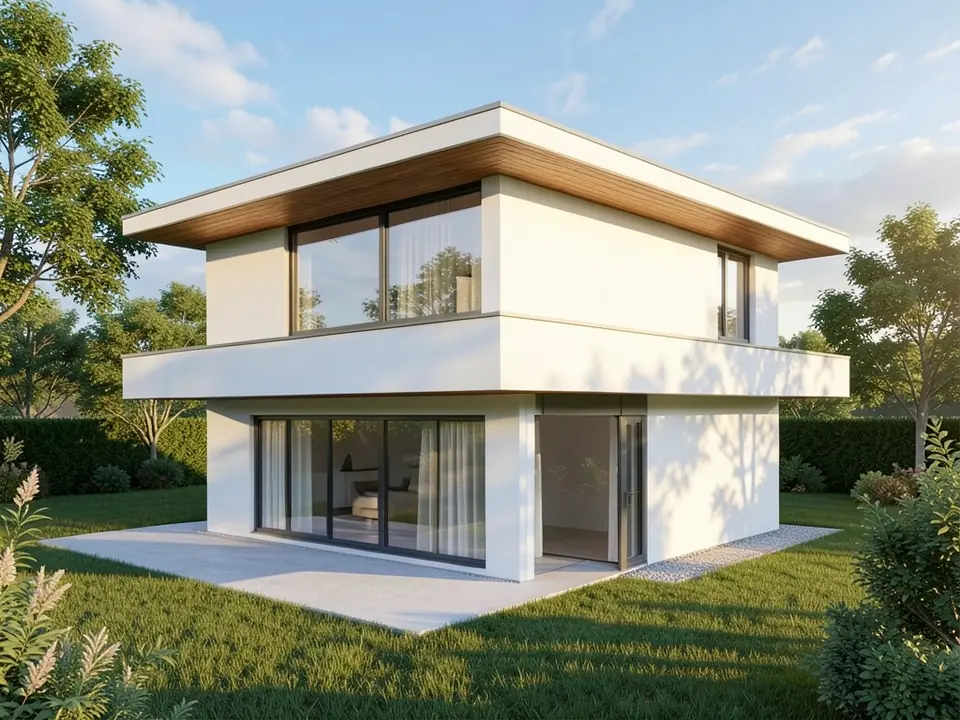
After: photoreal render
What SketchUp to render AI does
SketchUp is quick for modeling, but its default view is white faces with black lines. Making a photographic image from it usually means adding materials to every face, placing lights and running a render engine such as V-Ray, Enscape or Lumion. That takes time, a strong computer and practice.
SketchUp to render AI skips that setup for concept work. You give it a picture of your model view. The AI reads the geometry in the image (walls, roof, openings, furniture) and paints a finished, photorealistic image over it with materials, light, sky, people and planting that fit the style you choose.
The result is an image for client meetings, presentations, social posts or design reviews. It is not a new SketchUp file and it does not change your model.
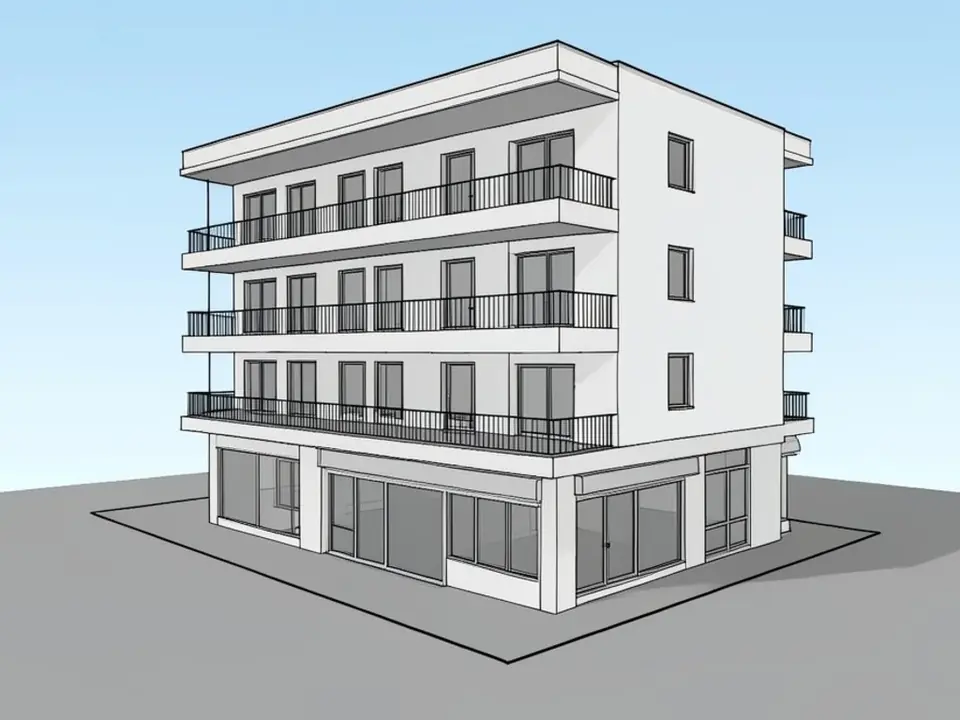
Before: SketchUp-style model view
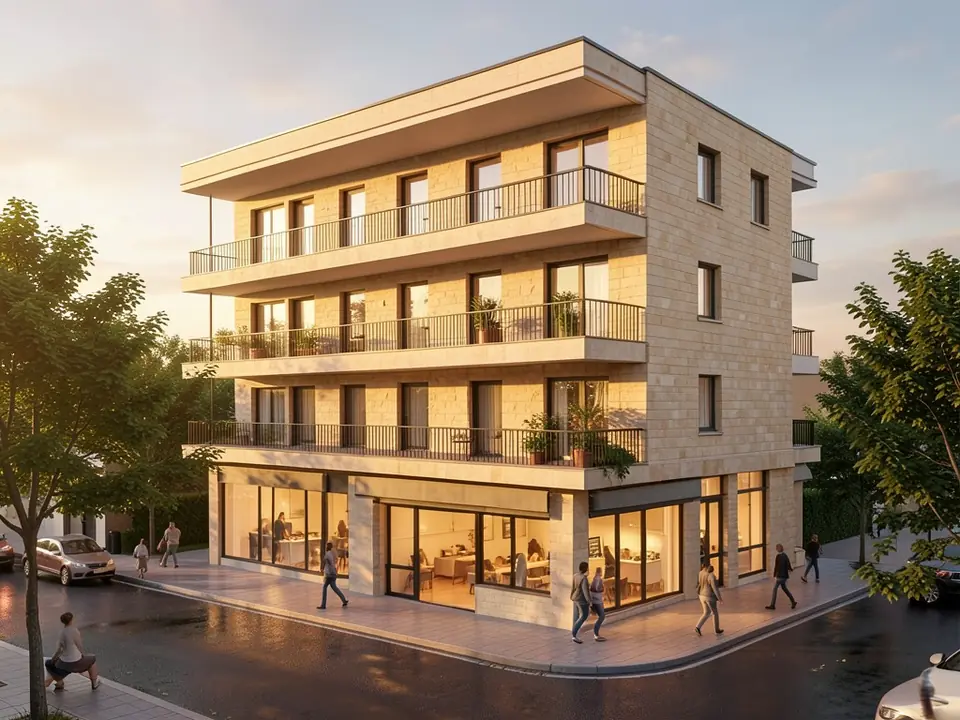
After: street-level render
How to render a SketchUp model with ArchitecturesAI
- In SketchUp, set up the view you want and save it as a Scene so you can come back to the same camera later.
- Export it with File > Export > 2D Graphic as a PNG or JPG, or take a screenshot of the viewport. Crop away toolbars, trays and the window frame.
- Click "Render your SketchUp model". The Sketch to Render tool opens with Residential and Modern selected, and you sign in with Google or email.
- Upload the image and pick the building type that matches the view, such as Residential, Villa, Commercial, Office, Interior, Facade or Skyscraper (25 types in total).
- Pick a style such as Modern, Contemporary, Scandinavian, Mediterranean, Industrial, Japanese or Tropical (25 styles in total).
- Press Generate and download the render. To change a material or add something, use Edit Image or Custom Action on the result and describe the change in words. Each edit is another render and uses credits.
How to prepare your SketchUp view for the best render
- Use two-point perspective (Camera > Two-Point Perspective) so vertical lines stay straight. Renders of leaning walls look wrong.
- Keep edges on. The black outlines help the AI find the edges of walls, windows and roof lines.
- Turn on shadows and set a sun position. Shadows show depth and can hint at the light direction you want.
- Pick a natural camera height: eye level for street views and interiors, a little higher for a three-quarter view of a house.
- Hide guides, section planes, axes, dimensions and text. Anything visible in the image may be read as part of the building.
- Export at a decent size, about 1,500 to 2,000 pixels wide. Tiny screenshots lose thin details such as railings and mullions.
- You do not need textures. A plain white model works, as the examples show. If you already applied materials, the AI may pick up their general color and pattern, together with the style you choose.
- Frame the building with some space around it. A model cut off at the edge of the frame gives a cut-off render.
Who uses it
Because one render takes a single upload, it is also an easy way to try the same model view in several styles side by side before choosing a direction with a client.
- Architects and designers who want a quick mood image of a SketchUp concept before spending hours on a full render setup.
- Architecture and interior design students who need presentation images for studio reviews and portfolios.
- Builders, kitchen and furniture makers who model in SketchUp and want to show a client a realistic picture.
- Homeowners and self-builders who modeled their own house or extension in SketchUp Free and want to see it as a photo.
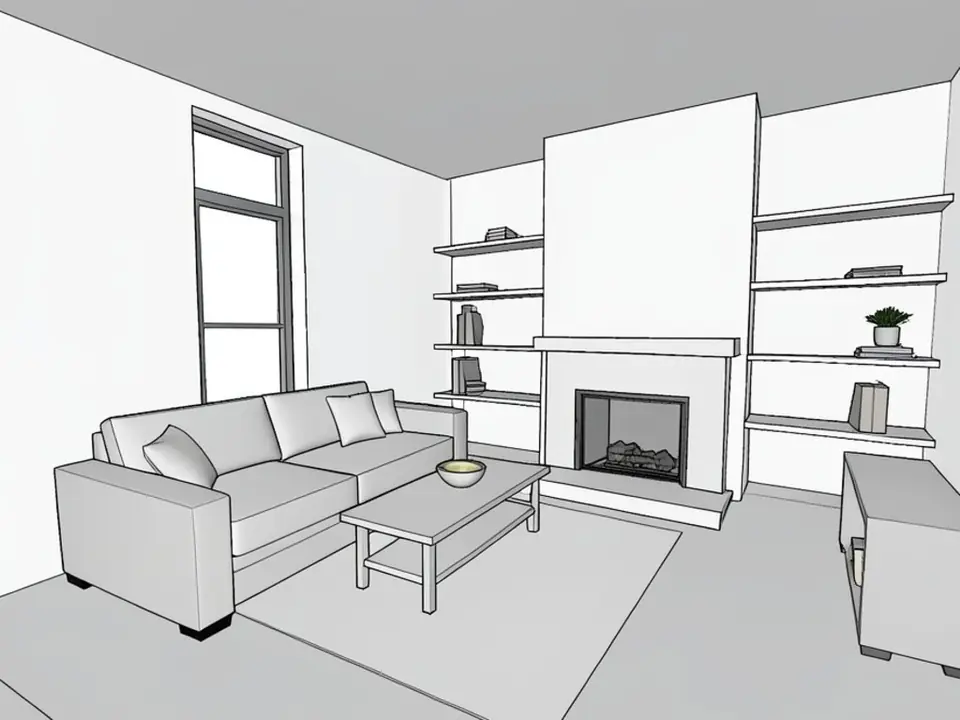
Before: SketchUp-style interior
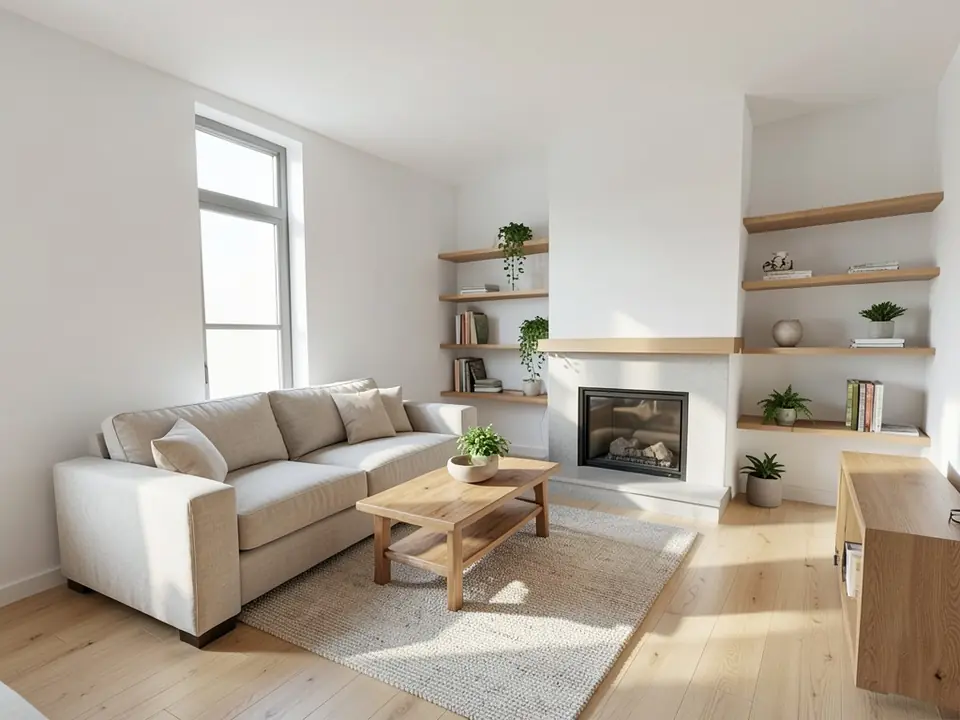
After: interior render
AI render or a render engine?
An AI render is fast and needs no material or lighting setup, but it decides small details for you. It can add trees, people, cars or furniture you did not model, change a texture, or redraw a thin element in its own way. Text and exact colors from your model are not guaranteed.
A render engine such as V-Ray, Enscape, Lumion or Twinmotion gives exact materials, walkthroughs, animations and the same result every time, but it needs a capable computer and a lot more setup. Many designers use AI renders for early options and client direction, then a render engine for final images.
Free tier and plans
You need a free account to render. New accounts get 2 free renders, and free renders carry a watermark. In India this site does not include free renders, so a paid plan is needed there. Weekly, monthly and yearly plans for more renders without the watermark are on the pricing page.
Frequently asked questions
Can I turn a SketchUp model into a realistic render with AI?
Yes. Export or screenshot a view of the model as a JPG or PNG, upload it, pick a building type and a style, and the AI returns a photorealistic image of the same view with materials, light and surroundings.
Do I need to install a SketchUp plugin or extension?
No. ArchitecturesAI runs in the web browser. You upload an image of your model view, so it works with any SketchUp version, including SketchUp Free, and with other modeling programs too.
Can I upload my .skp file?
No. The tool works from an image, not from the model file. Export the view as a 2D graphic (PNG or JPG) or take a screenshot, then upload that.
Is SketchUp to render free?
You can start for free. After you sign in, a new account gets 2 free renders with a watermark. In India this site does not include free renders. Paid weekly, monthly and yearly plans are listed on the pricing page.
Will the render keep my design?
The AI follows the camera angle, massing, roof line and openings in your image, as the examples on this page show. It can still change small details or add things you did not model, so check the result and generate again if needed.
Does it work for interiors?
Yes. Choose the Interior building type and upload a view of a room model. The AI adds finishes, fabrics, lighting and decor while keeping the layout of your furniture and openings.
Does it replace V-Ray, Enscape or Lumion?
Not for final, exact images. It is a fast way to get concept renders without material and lighting setup. For exact materials, animations or walkthroughs, a render engine is still the better tool.
Do I get a 3D model or a video back?
No. The output is a still image you can download. Your SketchUp model is not changed and no 3D file is created.
Render your next SketchUp model
Export a view, upload it, pick a building type and a style, and download a photoreal render to share. Your first 2 renders on a free account are on us.
Render your SketchUp modelRelated: AI architectural rendering · Sketch to render AI · Floor plan to 3D render · Pricing