ArchitecturesAI · Guide · Updated October 31, 2026
How to virtually stage an empty room with AI, step by step
Empty rooms are hard to sell from a photo. Buyers struggle to judge the size, and a bare room looks colder than it is. Virtual staging adds furniture to the photo instead of the room, so you can show how the space could be used without hiring or moving anything.
Below is the whole process, from taking the photo to labelling the result in your listing. We ran one empty room through our virtual staging tool three times with different options and show each result as it came out, including what to check before you publish.
The empty room
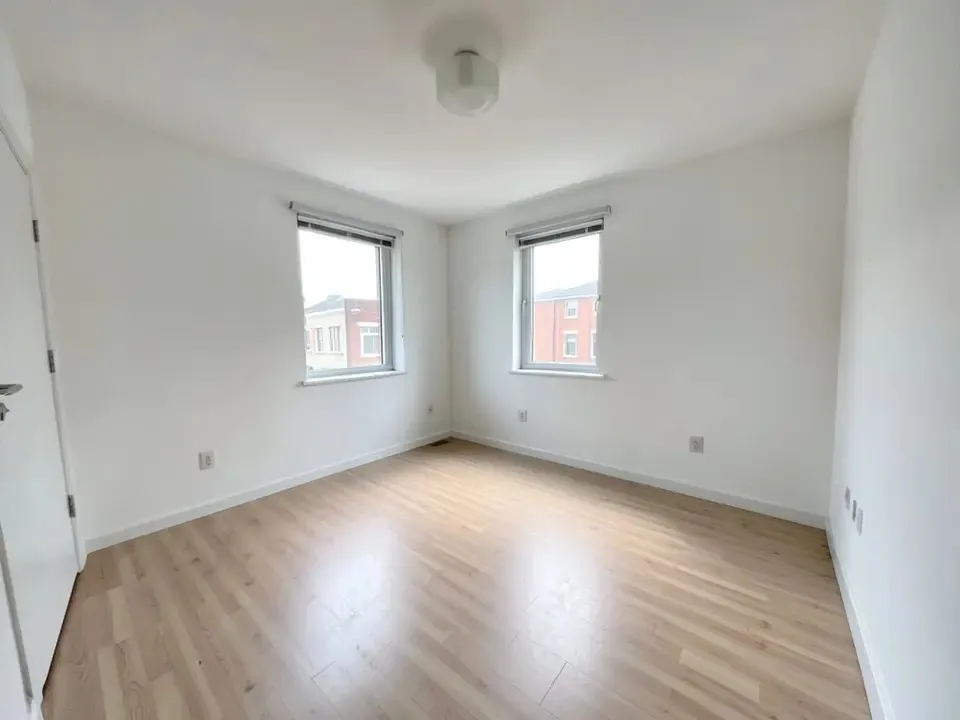
How to virtually stage a room, step by step
1. Choose the rooms worth staging
Stage the rooms buyers decide on: the living room, the main bedroom and any room whose use is unclear, such as a small second bedroom or a loft. Rooms that sell themselves, like a finished kitchen or bathroom, rarely need it.
2. Clear and clean the room
Remove boxes, ladders, cables and anything left on the floor or window sills. AI staging places furniture on top of what is there, so clutter can end up half-covered or in an odd spot.
3. Take a good photo
Shoot in landscape, in daylight, with the lights on. Stand in a corner or a doorway at about chest height, keep the camera level so walls stay straight, and get as much floor in the frame as you can. A wide, bright photo gives the AI room to place furniture at a believable size.
4. Upload it and pick the room type
Open the virtual staging tool, upload the photo, and under "Select Building Type" pick the room: Living Room, Bedroom, Dining Room, Home Office and more. Picking Bedroom matters: it asks for a bed, nightstands and a dresser, and no sofa.
5. Pick a furniture style and an optional feel
Under "Select Furniture Style" choose the look, such as Modern, Scandinavian, Traditional or Mid-Century Modern. Pick a style that suits the buyers for that home. You can also add one feel under "Room Characteristics", such as Bright or Spacious.
Room type and style, as picked for the living room example
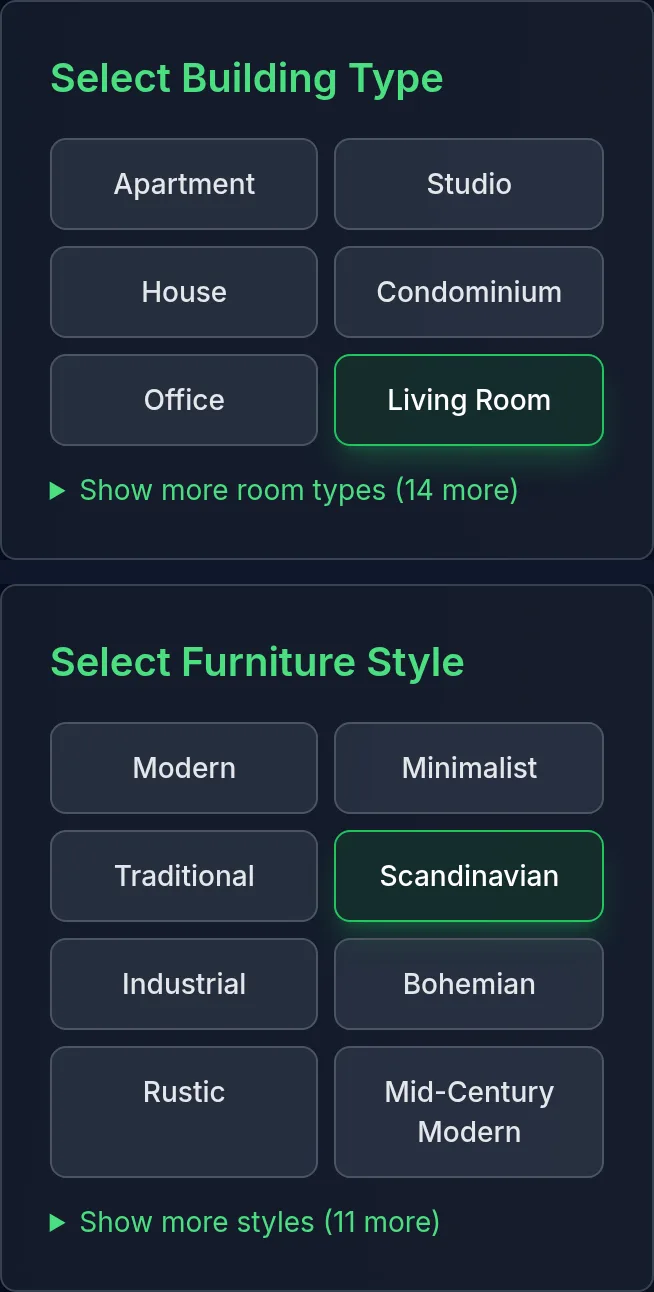
6. Check the result closely
Before you use it, compare the staged image with the original. Windows, doors, radiators and sockets should still be where they are. Furniture should be a believable size for the room, and nothing should block a door. If something is wrong, run it again or try another style.
7. Label it and keep the original
Mark staged photos as "virtually staged" in the listing and keep the empty original available. Many MLSs and listing sites require this, and buyers trust a listing more when they can see both.
Free to try. Upload one photo of an empty room and pick a room type and style.
One empty room, three staging results
Each result is one run on the photo above with the options listed. Nothing was retouched.
Living room, Scandinavian
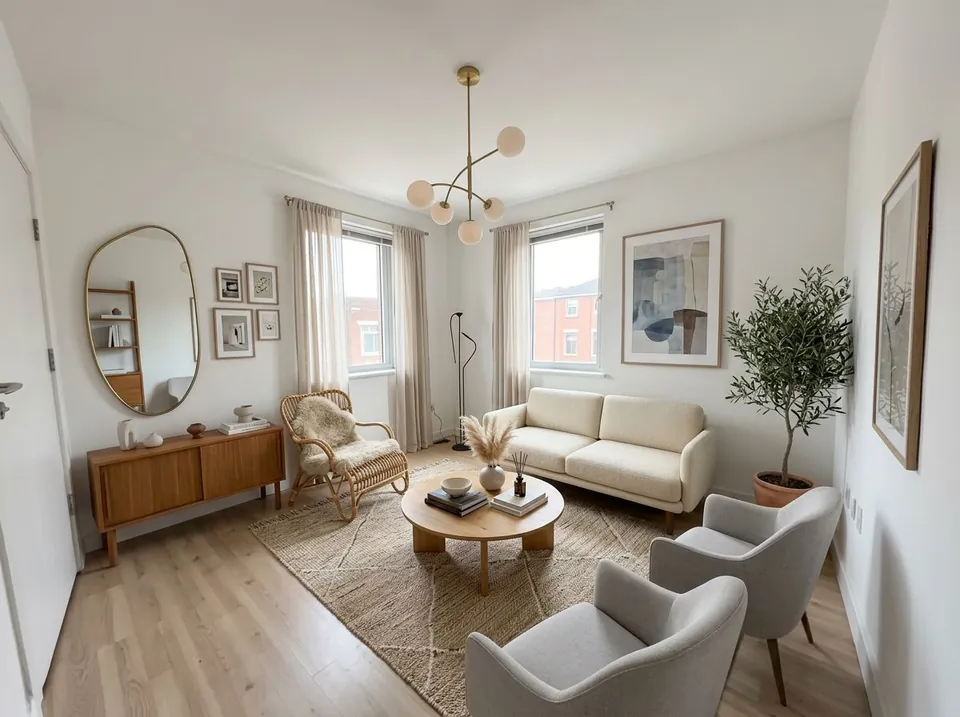
Settings: Room: Living Room; Style: Scandinavian
Bedroom, Modern, Spacious
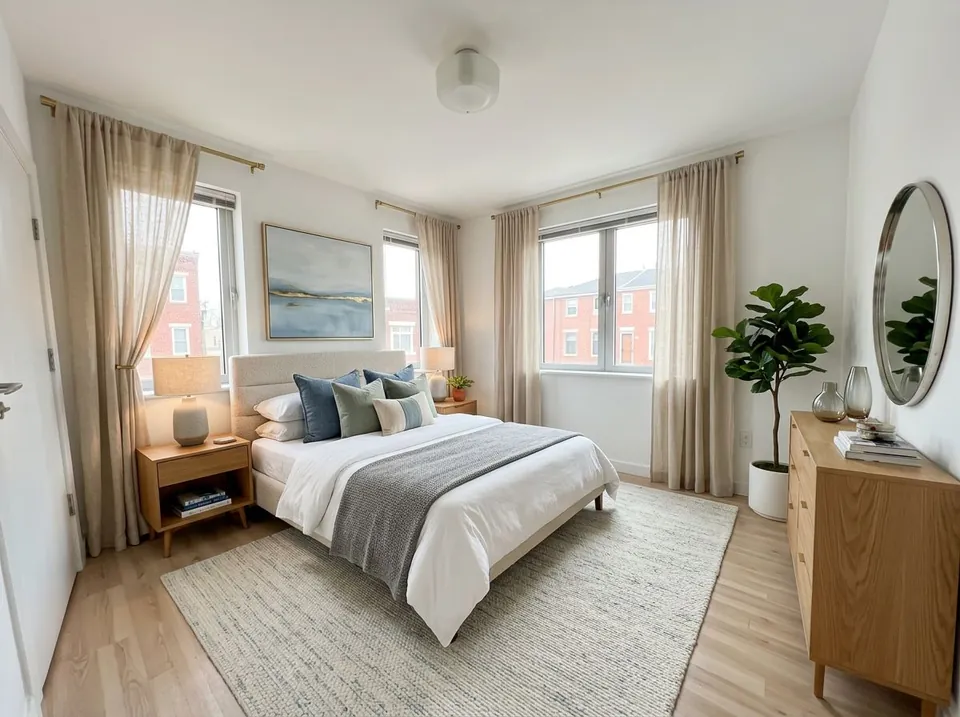
Settings: Room: Bedroom; Style: Modern; Feel: Spacious
Apartment, Modern, Bright
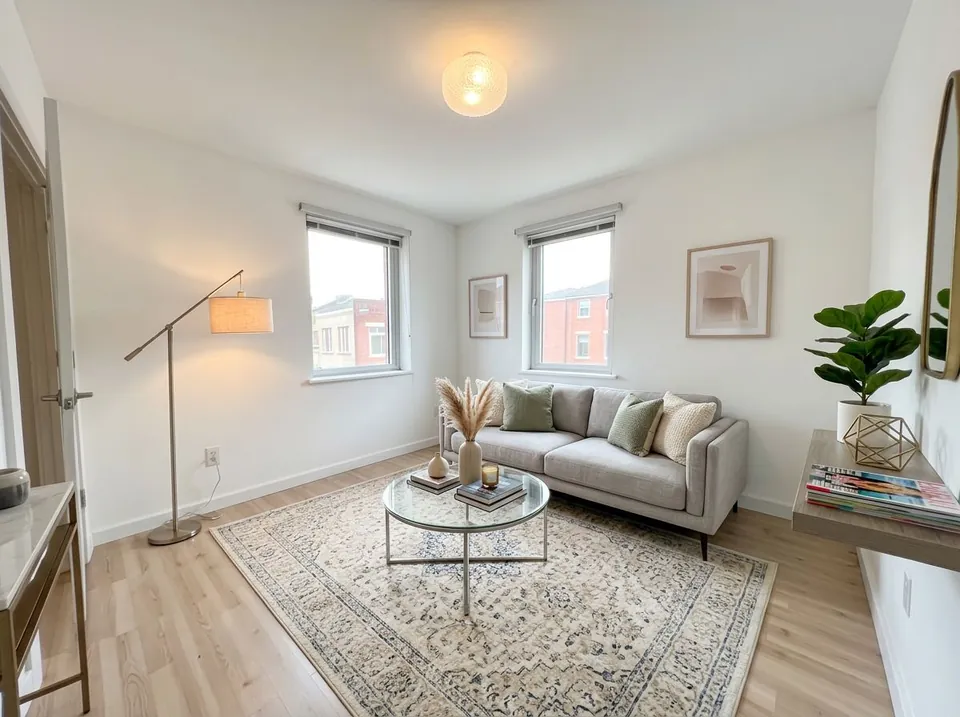
Settings: Room: Apartment; Style: Modern; Feel: Bright
All three kept the walls, floor and window positions, but two of them made the room look roomier than it is. That is the most common problem with AI staging, and the reason step 6 matters.
Good photos make good staging
- Wide and level: a photo from a corner, with vertical walls straight, gives the most believable furniture.
- Bright: daylight plus room lights. Dark photos get dark, muddy furniture.
- Empty floor: the more floor the AI can see, the better it judges where furniture goes and how big it should be.
- One room per photo: an open-plan shot that shows the kitchen and the living area may get furniture in the wrong zone.
What virtual staging is not
Virtual staging changes the photo, not the property. It must not hide or change anything a buyer would care about: damp, cracks, the view, the size of the room, or fixed features. Staging furniture is fine; editing the building is not.
It is also not a floor plan. Furniture in a staged photo is not to scale, so do not use it to show that a particular bed or table will fit.
Frequently asked questions
How do I virtually stage an empty room?
Take a bright, level photo of the empty room, upload it to a virtual staging tool, pick the room type and a furniture style, check the result against the original, and label it as virtually staged in your listing.
Can I virtually stage a room for free?
Yes, you can try our virtual staging tool free. Upload a photo, pick a room type and style, and stage it.
Do I have to say a photo is virtually staged?
In most places, yes. Many MLSs and listing sites require virtually staged photos to be labelled, and some ask you to include the empty original. Check the rules for your market before you publish.
Which rooms should I stage?
The living room, the main bedroom and any room whose use is unclear. Those are the rooms buyers find hardest to picture empty.
Why does the staged room look bigger?
AI image models sometimes widen the view or enlarge windows while they add furniture. Compare the staged photo with the original and run it again if the room looks noticeably larger.
Can it stage a bedroom without adding a sofa?
Yes. Pick Bedroom as the room type: the tool asks for a bed, nightstands, a dresser and curtains, and no sofa, armchairs or coffee table.
Stage your first room
Take one bright photo of an empty room and try two styles. Keep the one that fits the buyers, and label it in the listing.
Stage a room photoRelated: Real estate rendering · Choosing exterior paint colours · AI prompts for architecture renders