Landscape architecture rendering AI
AI Landscape Architecture Rendering from Your Sketch or Model
Upload a hand sketch, a screenshot of your 3D model or a photo of the site, choose Landscape and a style, and ArchitecturesAI repaints it as a photo-like image with lawn, planting, paving, materials and daylight. It usually keeps your camera, the line of your paths and where trees and seating stand, but it redraws the details and can add things you did not draw. Use it for concept images and client conversations, and check every result against your design.
Render your landscape viewSign in with Google or email to render. New accounts get 2 free renders (watermarked); free renders are not available in India on this site.
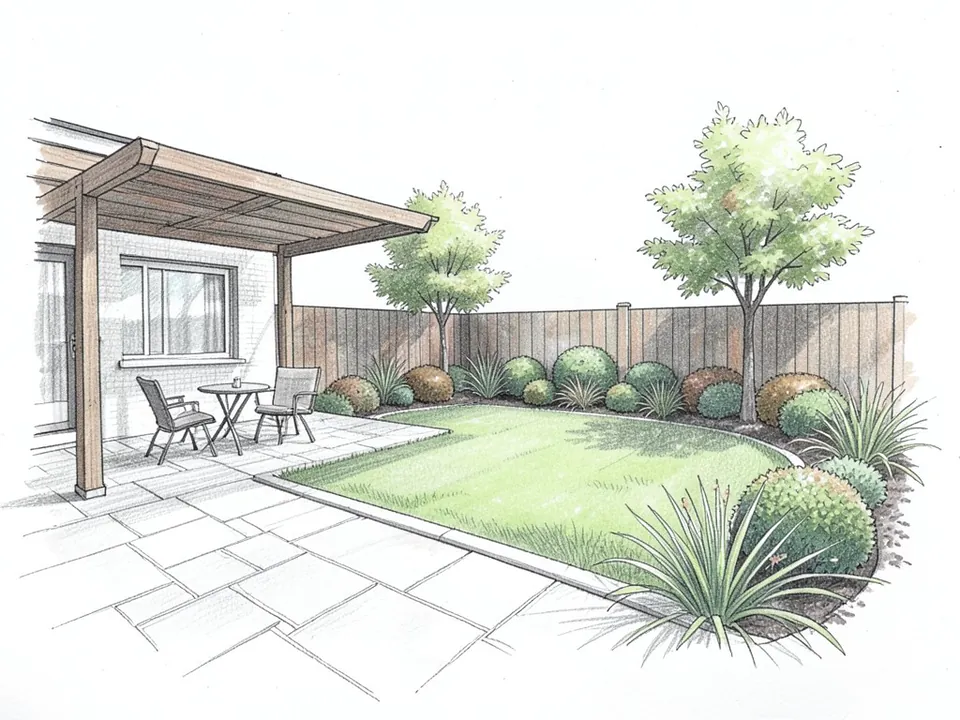
Before: pencil and marker sketch (AI-drawn stand-in)
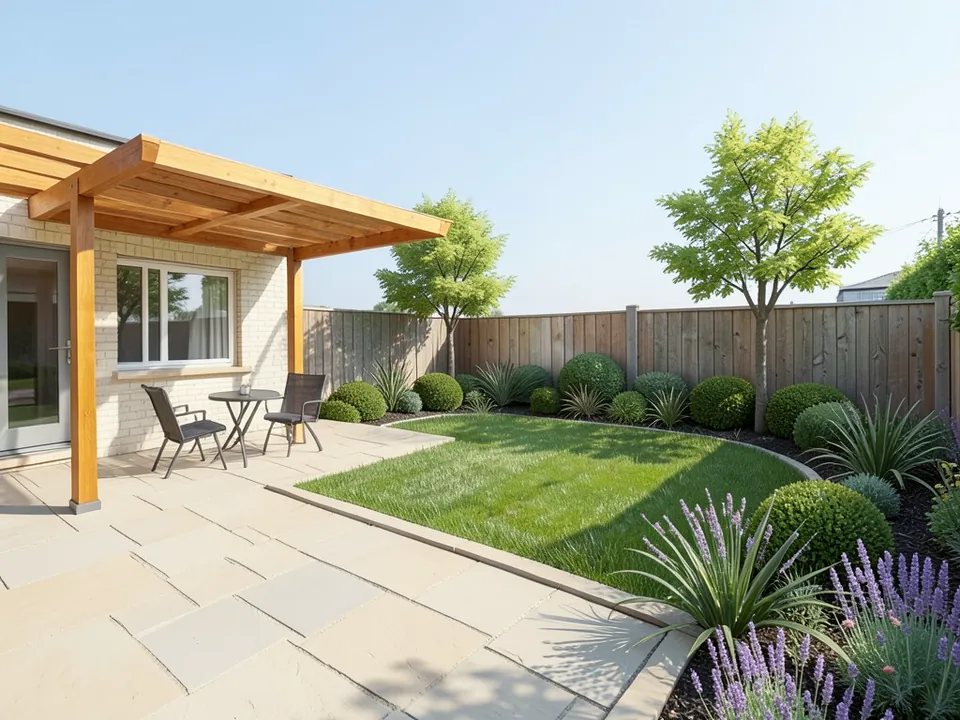
After: rendered: paving, planting, daylight
What landscape architecture rendering is
Landscape architecture rendering turns a design for an outdoor space into a picture people can read. A plan shows where things go. A rendering shows what it will feel like to stand there: the paving underfoot, the height of the planting, the shade under the trees and where people will sit.
That picture used to take hours of hand colouring or a full 3D render with modelled plants and materials. AI rendering shortens the early part. You give it a sketch, a plain model view or a photo of the site, and it fills in materials, planting and light, so you can test a look before you invest in a final image.
How to render a landscape view with ArchitecturesAI
- Save the view as a JPG or PNG: a scan or phone photo of your sketch, a screenshot of your SketchUp, Rhino or Lumion model, or a photo of the site.
- Click "Render your landscape view". The Render Architecture tool opens with Landscape selected under Architecture Type and Modern under Style. Sign in with Google or email.
- Under "Please select an image", click Select Image and upload your view. For a hand sketch you can also switch the mode at the top to Sketch to Render, which takes an upload in the same way; pick Landscape and a style again after switching.
- Pick the Style closest to the design, such as Modern, Japanese, Mediterranean, Tropical or Sustainable (25 styles in total). Render mode has no text box: the tool writes its own instruction from the type and style you pick, so the style is your main control. For the Landscape type that instruction reads roughly "Transform this landscape into stunning modern architecture", so the AI can add walls, pavilions or other built elements you did not draw; if it does, remove them with Custom Action or Edit Image, or try another style.
- Free accounts can only use Low quality (Medium and High are marked PRO). Press Generate Architecture and download the result.
- To change one thing, such as adding people for scale or more trees along a path, open Custom Action or Edit Image on the result and describe it in a sentence. Those actions work on the rendered result, not on your upload, and each one uses credits. The examples on this page ran directly on our image model with written prompts, not through this tool, so your result will differ.
Three kinds of input: sketch, model view or site photo
All three work, and each one asks a different question of the AI.
- Hand sketch. Best when the idea is still loose. The AI follows strong lines, such as the edge of a lawn or a terrace, and turns marker colour into material and planting. Faint or overlapping lines are open to its own reading.
- Model view. A grey or white view from SketchUp, Rhino, Lumion or any other program gives the AI exact positions for paths, trees and seating. Simple massing trees are enough: in the park example it kept every trunk where the model had one.
- Site photo. A photo of the existing space shows the AI the real buildings, light and paving. The AI keeps those and paints a new landscape into the space. With the tool, the new design comes from the style you pick, not from a plan of yours, so use it to explore ideas rather than to show a fixed scheme.
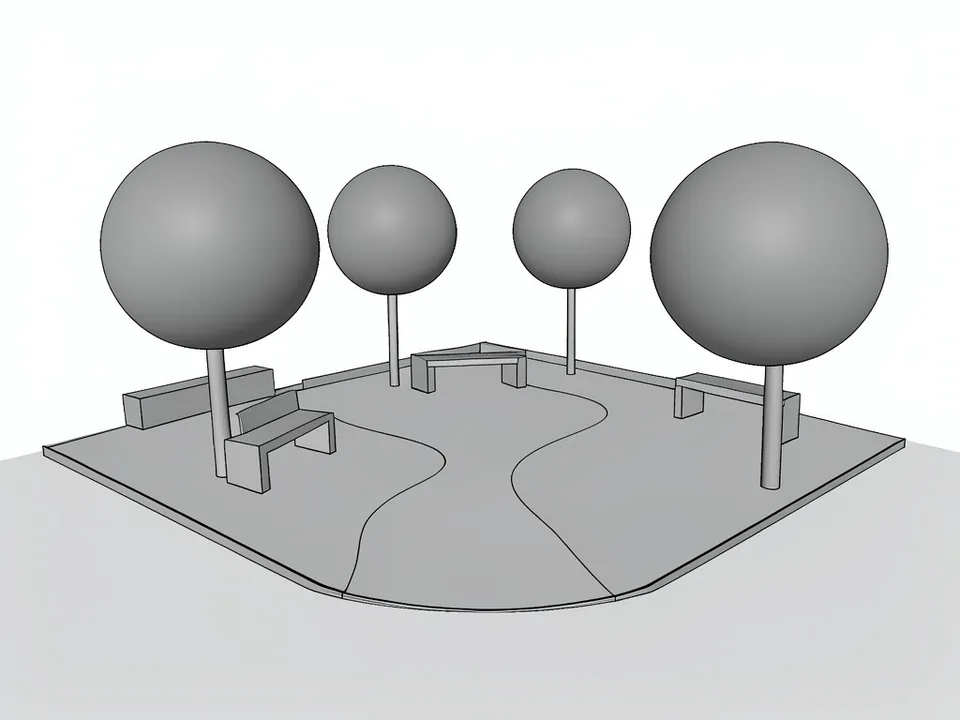
Before: grey 3D model view (AI-drawn stand-in)
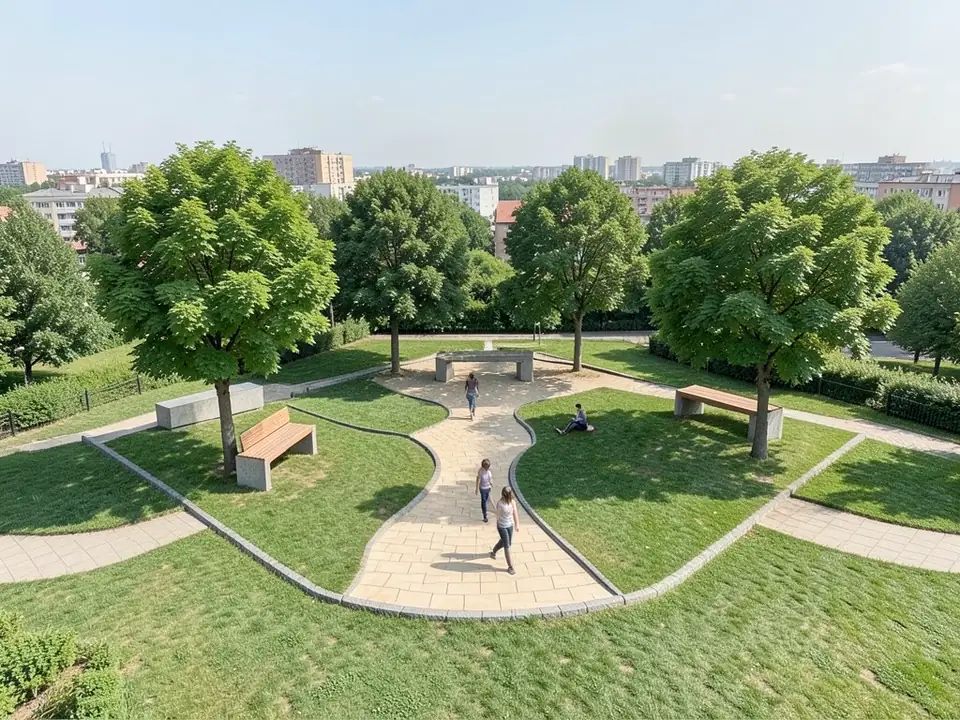
After: rendered: path, lawn, trees, people
What the AI keeps and what it may change
The three examples on this page show the same pattern. Use it as a checklist for your own result.
- Usually kept: the camera angle (the park example came out from a much higher view), the outlines of terraces, lawns and paths, where trees and benches stand, and the buildings in a site photo.
- Often redrawn: paving and kerb materials, plant shapes, fences, furniture details and the sky.
- Sometimes added or missed: people, hedges, railings, pots, neighbouring buildings and even a utility pole; and parts of a request can be skipped, such as single-trunk trees where multi-stem ones were asked for, or plain benches instead of timber.
- Never produced: a coloured plan drawing, a planting plan or plant list, anything measured to scale, or a shadow study. The render step also has no setting for time of day, season or weather.
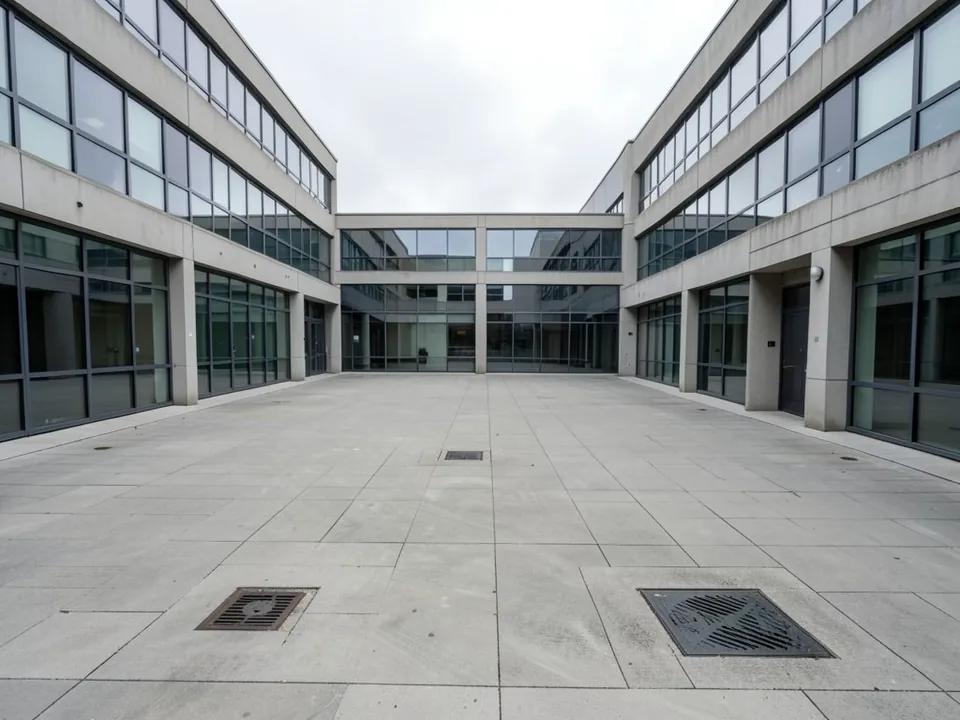
Before: bare courtyard photo (AI-drawn stand-in)
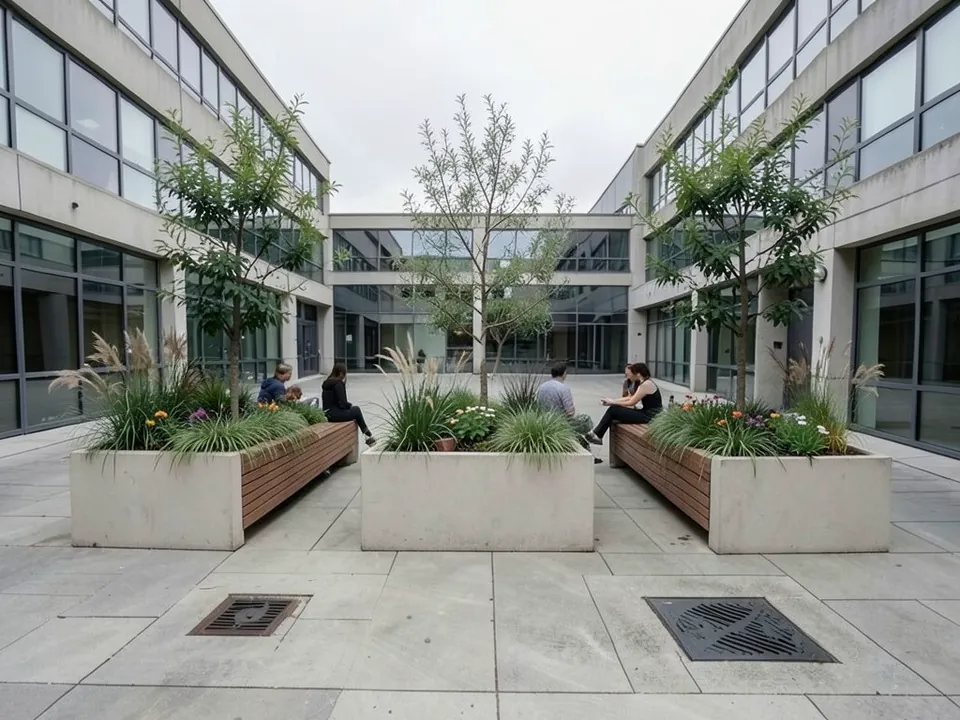
After: rendered: planters, trees, seating
Prepare your image before you upload
- Clean the sketch. Scan or photograph it flat in even light, crop the paper edges, and leave out notes, labels, north arrows and scale bars, which the AI can turn into odd objects.
- Draw the ground clearly. Lines for path edges, lawn edges and planting beds are what the AI follows.
- Mark every tree. A simple circle on a stem, or a ball on a pole in a model, tells the AI where a trunk goes.
- Fill the frame and show the edges. Empty ground and sky around your design get filled with paths, hedges and buildings that the AI picks itself, as in the park example.
- Choose a perspective. An eye-level or slightly raised view reads most like a photo. A straight top-down view is a plan, and this tool is not made for plans.
- Hide the model interface: toolbars, axes, grids and selection boxes can show up as strange objects.
Render Architecture or the Landscape design tool?
ArchitecturesAI has two tools for outdoor spaces. Render Architecture with the Landscape type, the one this page is about, turns a view of your design into a finished-looking image. The separate Landscape design tool starts from a photo of an existing yard or garden and offers modes such as Child-Safe Yard, Pet-Safe Garden and Season Garden Viewer.
If you are a homeowner looking for ideas for your own yard rather than a render of a design, our sister site AI Landscape Design (aiforlandscape.com) is built for that. Both links are at the bottom of this page.
Who uses it
- Landscape architects and garden designers who need a concept image for a client meeting or a design review.
- Landscape architecture and architecture students preparing a crit, a portfolio page or a competition board.
- Architects and developers who want to show the outdoor spaces around a building early in a project.
Free tier and plans
You need a free account to render. New accounts get 2 free renders, and free renders carry a watermark. In India this site does not include free renders, so a paid plan is needed there. Weekly, monthly and yearly plans for more renders without the watermark are on the pricing page.
ArchitecturesAI is an independent web tool and is not affiliated with or endorsed by the makers of SketchUp, Rhino or Lumion. Those names are trademarks of their owners, used here only to describe the images people export from them. The "before" images on this page are AI-drawn stand-ins, not real sketches, model screenshots or site photos.
Frequently asked questions
What is landscape architecture rendering?
It is a picture of a designed outdoor space as it will look once built: paving, lawn, planting, water, seating, light and people, seen in perspective. Landscape architects and garden designers use renderings to explain a design to clients, juries and the public before anything is built.
What can I upload?
A perspective view: a hand sketch, a screenshot of a 3D model from SketchUp, Rhino, Lumion or any other program, or a photo of the existing site, as a JPG or PNG. The tool renders views, not plans. It does not turn a top-down plan into a coloured plan drawing.
Do I need a plugin for SketchUp or Rhino?
No. ArchitecturesAI runs in the browser. Take a screenshot or export an image of your view and upload it. Nothing is installed and nothing reads your model file.
Can I add people for scale?
Render mode has no text box, so you cannot ask for people in the first step; the AI may or may not add some. After the render, use Custom Action or Edit Image with a sentence such as "add a few people walking on the path". Each action uses credits, and the AI decides where the people go.
Can I choose exact plant species?
Not reliably. The AI paints a believable planting style, not a planting plan. It does not work from botanical names, sizes or spacing, and a plant it draws may look like a species without matching it. Keep your planting plan and plant list as the real record.
Will it keep my layout?
It usually keeps the camera, the outlines of paths, lawns and terraces, and where trees and benches stand, as the examples show. It often redraws materials and planting, can add people, hedges, paths or buildings around the edges, and can skip part of what was asked. Compare each result with your drawing.
Do AI renders replace a landscape architect?
No. The AI makes a picture from your picture. It does not design levels, drainage, planting, soils or structures, and it does not check anything against the site or local rules. It saves time on concept images; the design work and its checks stay with you.
Is it free to try?
Yes. After you sign in, a new account gets 2 free renders with a watermark. In India this site does not include free renders. Paid weekly, monthly and yearly plans are listed on the pricing page.
Render your next landscape sketch or model view
Scan your sketch or save a view of your model, upload it, choose Landscape and a style, and download a photo-like image for your client deck or crit. Your first 2 renders on a free account are on us.
Render your landscape viewRelated: Render Architecture tool · Landscape design tool · Urban design rendering AI · Sketch to render AI · SketchUp to render · Rhino render AI · Pricing · AI yard design for homeowners (aiforlandscape.com)