ArchitecturesAI · Guide · Updated October 31, 2026
How to choose exterior house paint colors, and see them on your house first
Exterior paint is expensive to get wrong: a colour that looked calm on a small card can look loud across a whole wall, and you live with it for years. Most of the risk goes away if you choose in the right order and see the colours on your own house before you buy a tin.
This guide walks through that order. We then took one photo of a small house and ran four real colour schemes through our free paint visualizer, so you can see what a preview looks like and where it needs a second look.
The starting photo
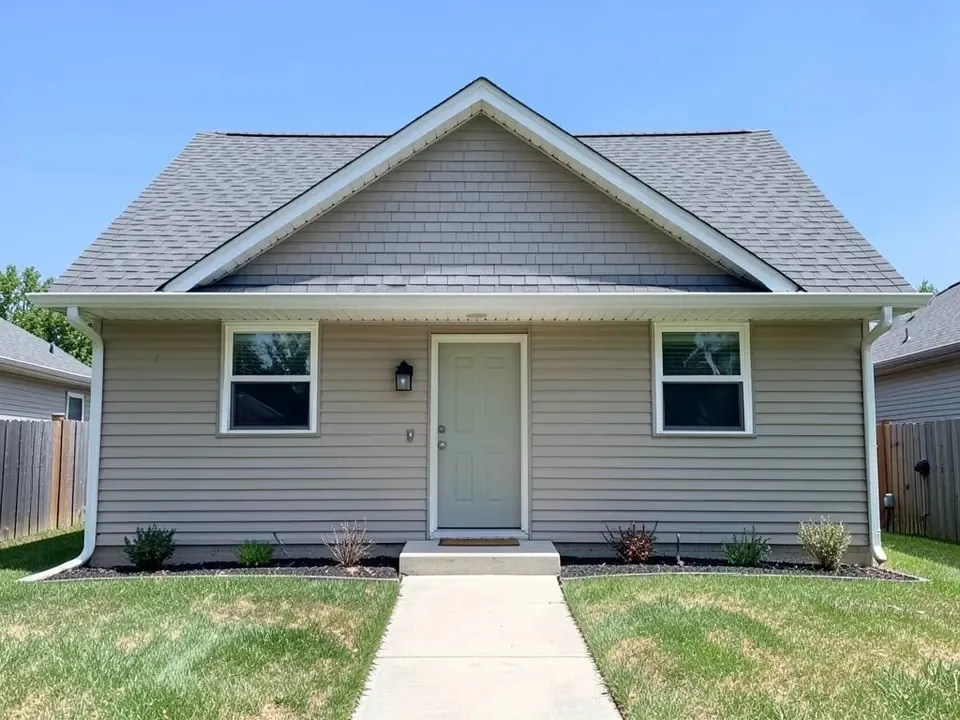
How to choose exterior paint colours, step by step
1. Check the rules first
If you have a homeowners' association, a conservation area or a listed building, find out what colours are allowed before you fall for one. Many HOAs keep an approved list and ask for an application before you paint.
2. Start from what you are not painting
The roof, brick or stone, paving and window frames usually stay. Look at their undertones, warm (brown, red, orange) or cool (grey, blue, green), and choose a body colour with the same undertone. A grey roof suits cool greys, greens and blues; a brown roof suits warmer creams, tans and olives.
3. Pick three colours: body, trim and door
Most houses look finished with three: a body colour for the walls, a trim colour for frames, fascia and corners, and an accent for the front door (and shutters, if you have them). The trim should contrast with the body, either lighter or darker, so the shape of the house reads from the street.
4. Think about the light and the street
Colours look lighter and brighter outside than on a card, so many people go a shade deeper than the one they like indoors. A north-facing front sits in shade and makes colours look cooler. Look at the houses either side too: you want your house to fit the street, not match it.
5. Preview each scheme on a photo of your house
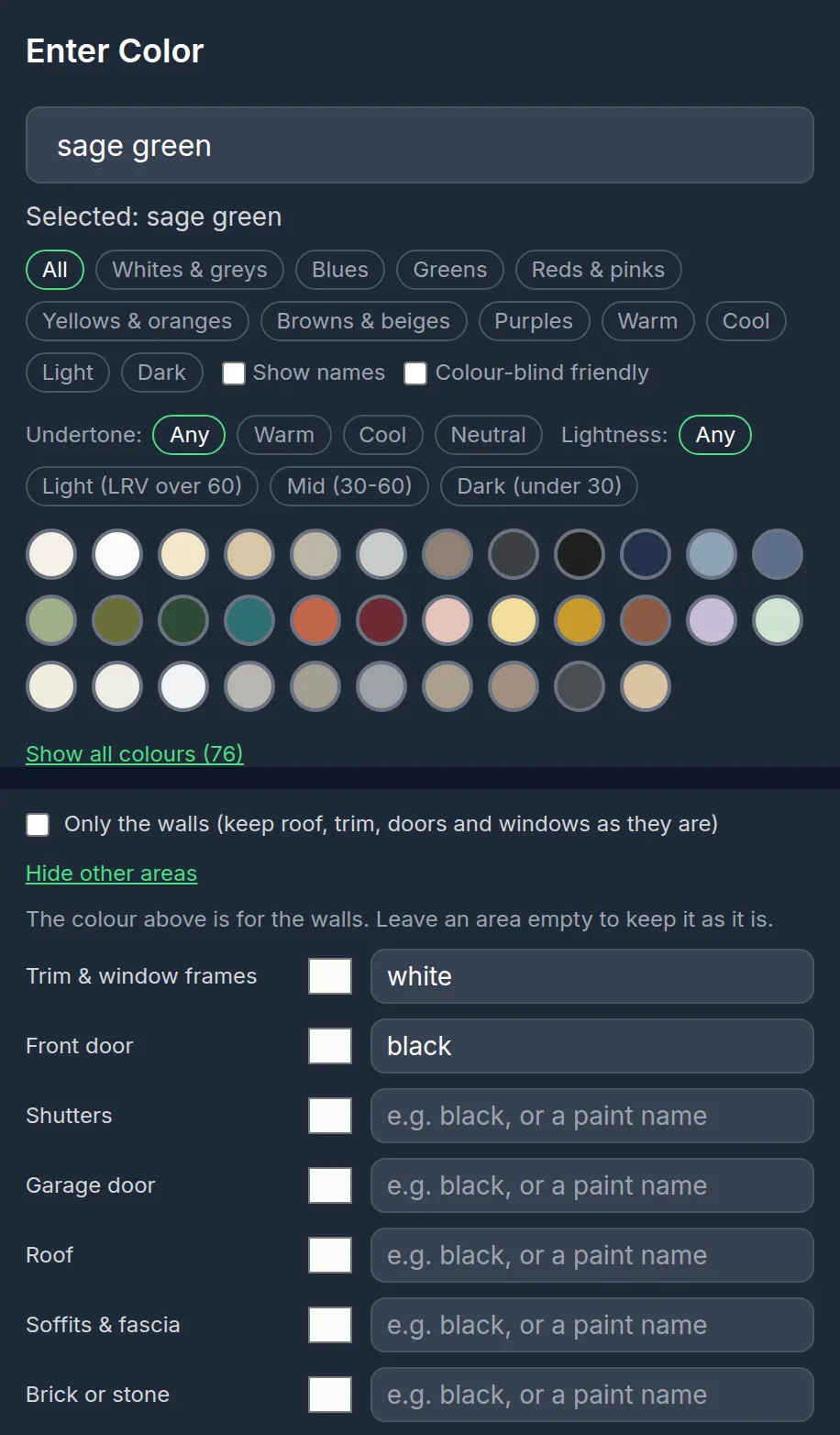
Take a straight-on photo of the front in daylight, then try each of your schemes on it. In our paint visualizer you choose Exterior Paint, upload the photo, pick or type the wall colour, and open "Paint other areas too (trim, door...)" to give the trim and the door their own colours.
If you only want to change the walls, tick "Only the walls (keep roof, trim, doors and windows as they are)" instead.
The paint visualizer, set up for the sage scheme
6. Narrow it down to two and test real samples
A screen is not paint. Buy sample pots of your two favourite schemes, paint large patches on the sunny side and the shady side, and look at them in the morning, at midday and in the evening for a few days.
7. Decide, and write the colours down
Note the exact paint names and codes for the body, trim and door, and keep your preview images with them. It makes touch-ups and the next repaint much easier.
Free to try. Upload a photo of the front of your house and pick a colour.
Four colour schemes on the same house
Each scheme is one run of the paint visualizer on the photo above, with the colours typed or picked exactly as listed. Nothing was retouched.
Sage green, white trim, black door
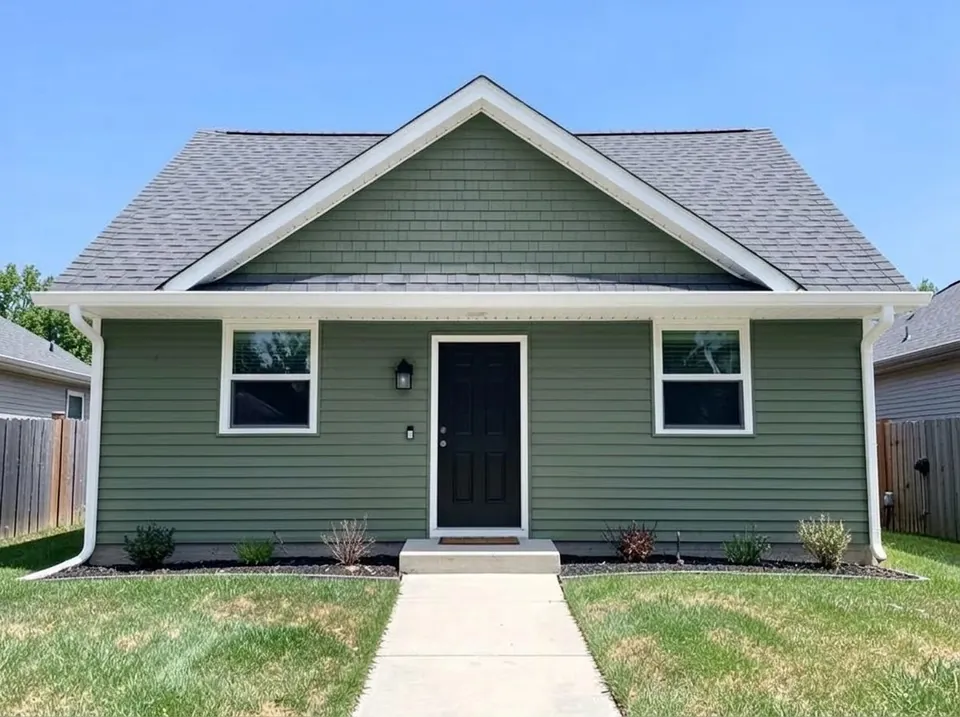
Settings: Walls sage green; Paint other areas: trim & window frames white, front door black
Navy blue, white trim, mustard door
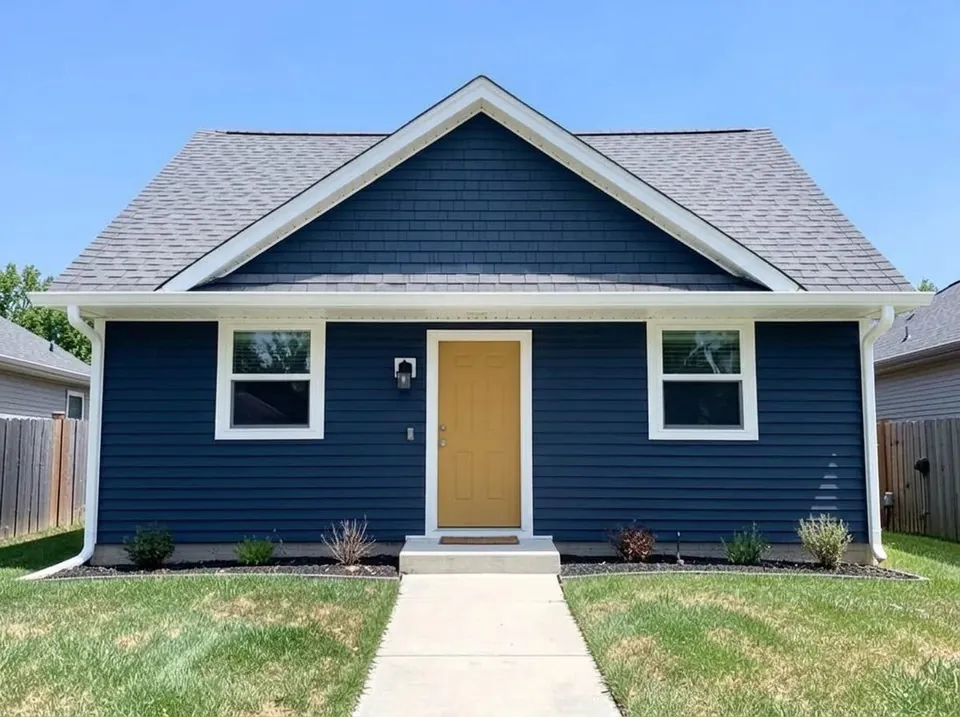
Settings: Walls navy blue; Paint other areas: trim & window frames white, front door mustard yellow
Warm white, black trim, oak door
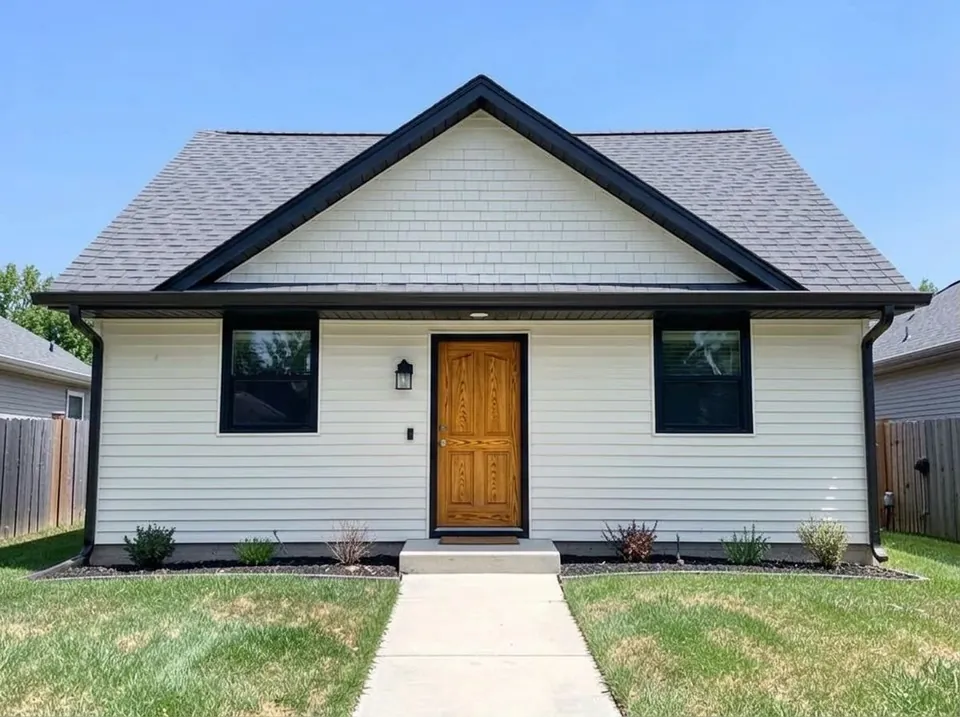
Settings: Walls warm white; Paint other areas: trim & window frames black, front door natural oak wood
Charcoal walls only
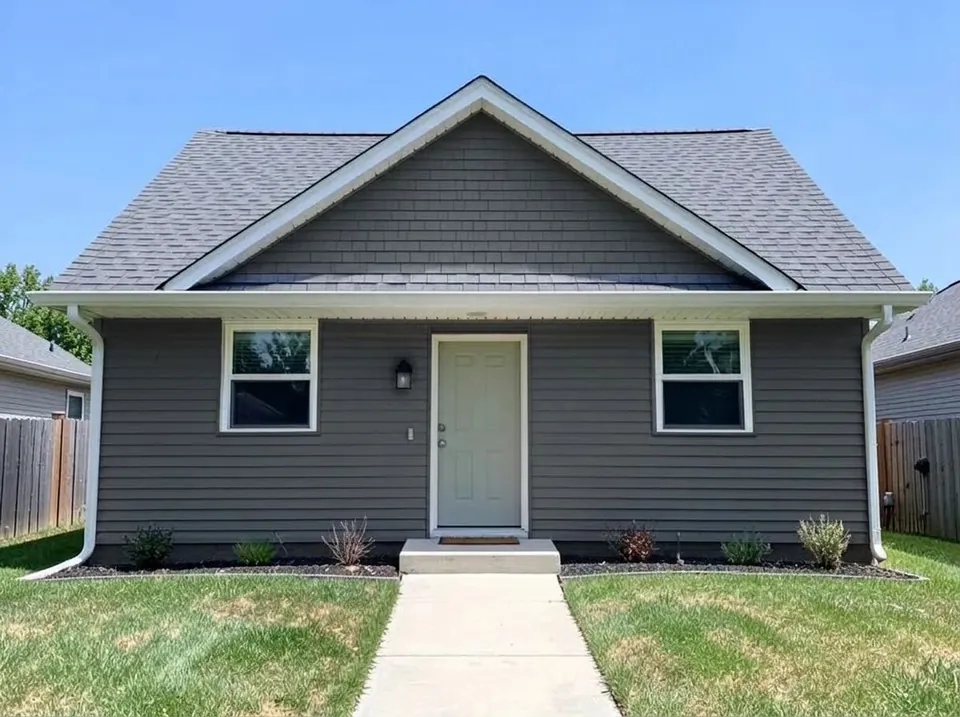
Settings: Walls charcoal gray; "Only the walls" ticked
Put side by side, the choice gets easier: the sage and the warm white both suit the grey roof, while the navy and the charcoal make a much stronger statement. That is the step a paint card cannot show you.
What to check in every preview
An AI preview is a fast way to rule colours in or out. It is not a colour-accurate match for a specific paint code, so always confirm with real samples on the wall.
- Did anything change that you did not ask for? Look at the fascia, gutters, garage door, roof and window glass.
- Is the colour the right depth for your light? A preview from a sunny photo will look lighter than a shaded wall.
- Does the trim still contrast with the walls from a distance? Zoom out or look at the thumbnail.
- Would the scheme still work with the neighbours' houses in the frame?
More colour ideas for one part of the house
If you already know the body colour and are stuck on one detail, these pages go deeper on single choices, each with its own examples.
Frequently asked questions
How do I choose an exterior paint colour?
Start from what stays (roof, brick, stone), match its warm or cool undertone, then pick a body colour, a contrasting trim colour and an accent for the door. Preview each scheme on a photo of your house and test the two best as real samples.
How many colours should a house exterior have?
Three is the usual answer: body, trim and an accent for the front door or shutters. Some modern houses use two, and some Victorian houses use four or five.
Can I see paint colours on a picture of my own house?
Yes. Upload a straight-on daylight photo to the paint visualizer, choose Exterior Paint, pick the wall colour and, if you like, separate colours for the trim and the door.
Is the AI preview colour-accurate?
No preview on a screen is. Screens, photos and daylight all shift colour. Use the preview to compare schemes and choose a direction, then confirm with sample pots on the actual wall.
Can I keep the trim and door as they are and only change the walls?
Yes. Tick "Only the walls" and the visualizer is asked to keep the roof, trim, window frames, doors, windows and landscaping exactly as they are. Our charcoal example above was made that way.
Is the paint visualizer free?
Yes, you can try it free, with no app to install.
Try your colours on your own house
Take one photo of the front of your house in daylight and run two or three schemes. It takes a few minutes and saves buying the wrong paint.
Preview colours on your houseRelated: Front door colours · White house with black trim · AI prompts for architecture renders · Virtual staging guide