Urban design rendering AI
Urban Design Rendering with AI: From Massing Model to Street View
Upload an aerial view, a street view or a screenshot of your massing model, choose Urban and a style, and ArchitecturesAI paints it into a photoreal scene with materials, street trees, paving, cars and people. It keeps your camera and massing but redraws the details. You get an illustrative image for a board, deck or workshop, not a planning document, and the AI can add things you did not draw, so check it before it goes out.
Render your urban viewSign in with Google or email to render. New accounts get 2 free renders (watermarked); free renders are not available in India on this site.
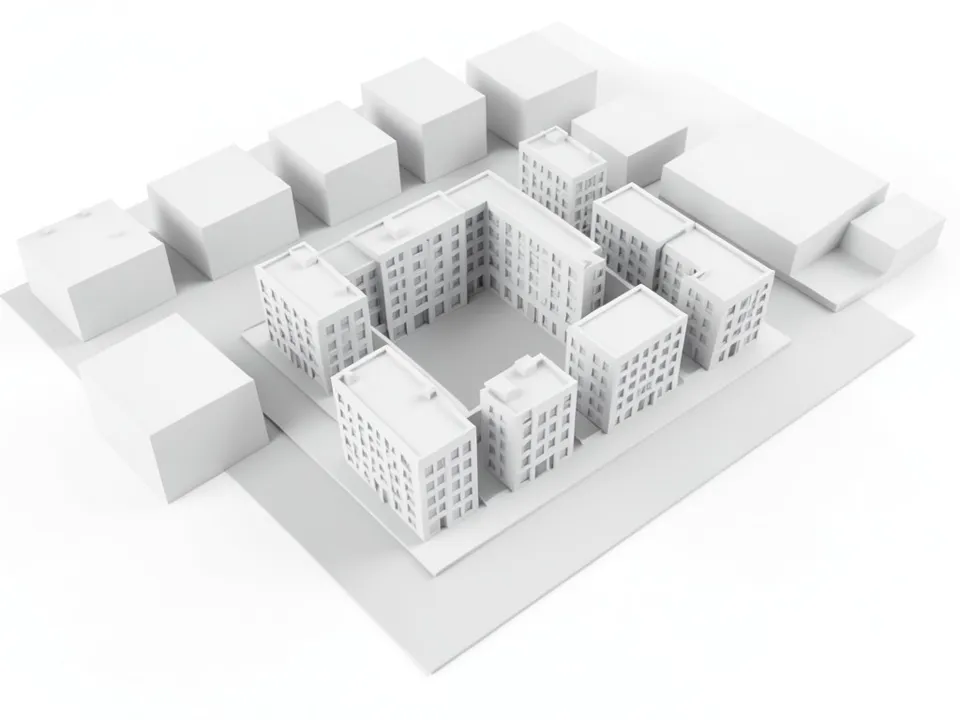
Before: white massing-model aerial
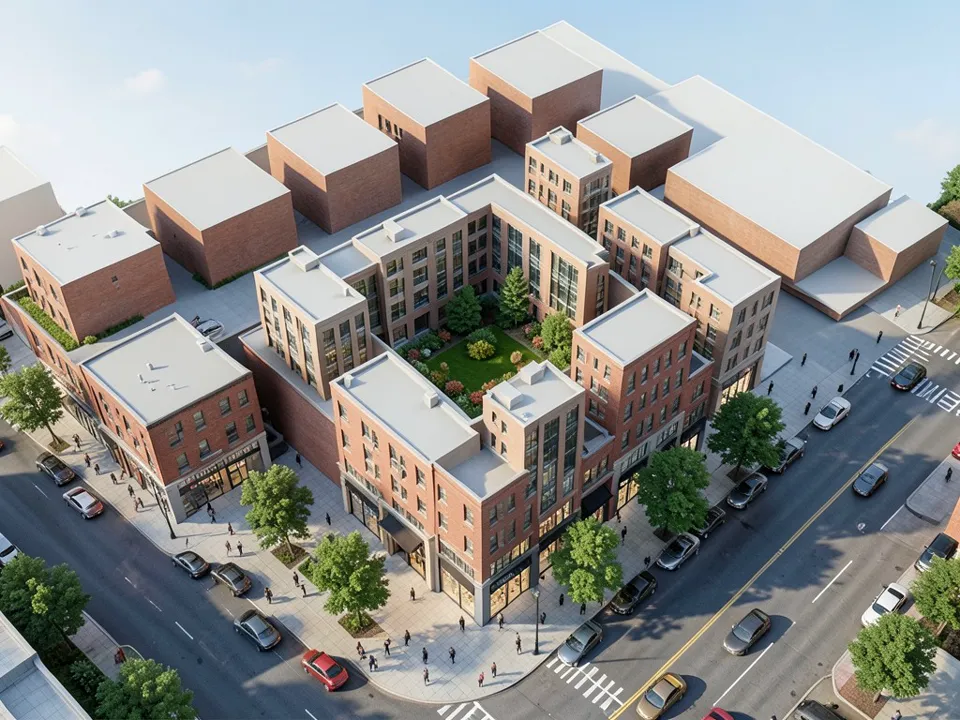
After: rendered: brick, courtyard, street life
What urban design rendering is
An architectural render usually shows one building. An urban design render shows a piece of a city: a block, a street, a square, a waterfront or a new neighbourhood. The subject is the space between the buildings: streets, sidewalks, trees, ground floors, and how the new pieces sit next to what is already there.
Most urban design images start from a simple massing model, seen from above or from the street. Texturing every building and placing hundreds of trees, cars and people is worth doing for a final board, not for every workshop option. AI rendering fills that gap: you keep your model view, and the AI adds the materials, planting, paving and street life that make it read as a place.
How to render an urban view with ArchitecturesAI
- Export the view as a JPG or PNG: a screenshot of your massing model from SketchUp, Rhino, Revit or any 3D program, or a clean perspective sketch. About 1,600 pixels wide or more keeps small details readable.
- Click "Render your urban view". The Render Architecture tool opens with Urban selected under Architecture Type and Modern under Style. Sign in with Google or email.
- Under "Please select an image", click Select Image and upload your view.
- Keep Urban as the Architecture Type for a block, street or district (Landscape suits a park-led view). Pick the Style closest to your architecture, such as Modern, Contemporary, Scandinavian or Sustainable (25 styles in total); a style far from your design pulls the buildings away from it.
- Free accounts can only use Low quality (Medium and High are marked PRO). Press Generate Architecture and download the result.
- To change one thing, such as more people or trees along a quay, open Custom Action or Edit Image on the result and describe it in a sentence. Those actions work on the rendered result, not on your upload, and each one uses credits. The examples on this page ran directly on an image model, not through this tool, so your result will differ.
Which view works: aerial, street level or plaza
The view you upload decides what the render can say. Pick it for the question you want the image to answer.
- Aerial view (a bird's-eye angle). Best for the structure of a scheme: how blocks, courtyards and streets fit together and how heights step against the neighbours. Draw the streets and the surrounding blocks, or the AI invents its own, as it did in the first example.
- Street level (a camera at standing height). Best for what a person would experience: ground floors, sidewalk width, trees and how enclosed the street feels. Keep verticals straight and model the ground-floor openings you care about; the AI fills blank ground floors with shops of its own.
- Plaza or public space. Frame its edges and model the benches, planters and trees that matter. Empty squares and gaps of sky between buildings get filled with the AI's own furniture and buildings, as the plaza example below shows.
- High oblique district view. Useful for a larger area such as a riverside. The AI keeps a clear street grid, river and bridge well at this distance, but buildings are small and their details generic.
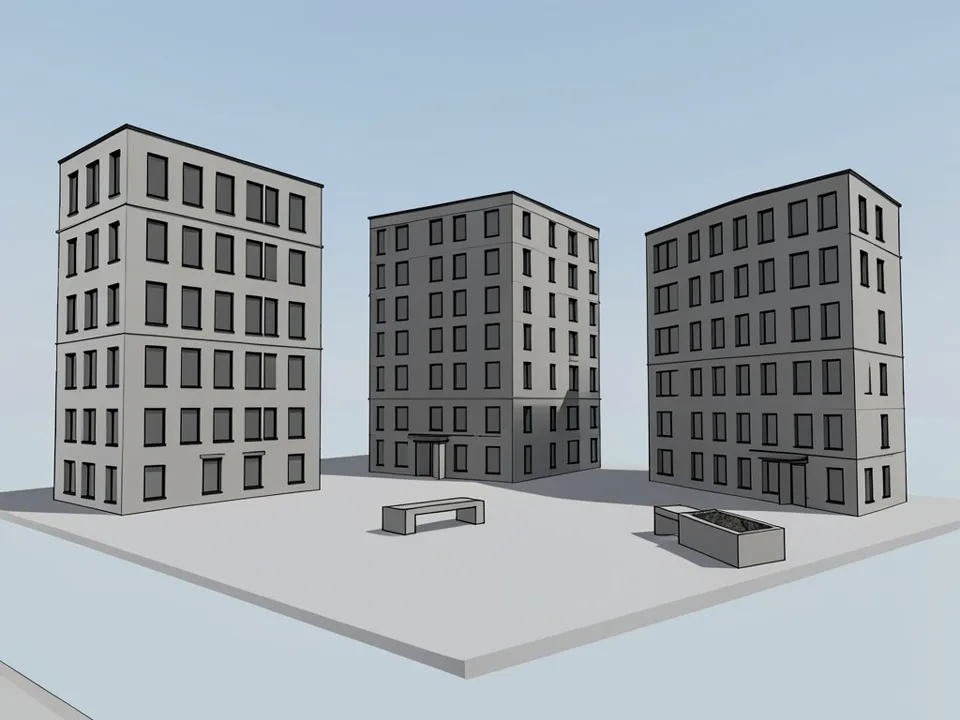
Before: grey model view at eye level
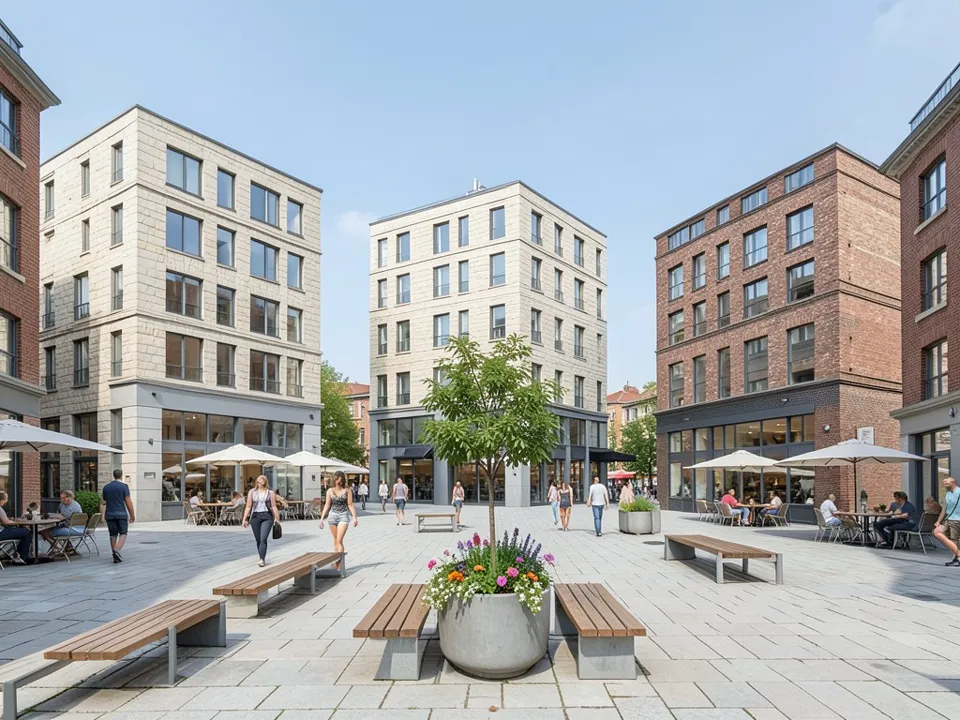
After: rendered: paving, people, cafes
What the AI keeps and what it invents
The three examples show the same pattern. Use it as a checklist for your own result.
- Usually kept: the camera angle, the block layout, building positions and rough heights (storey counts can change, as in the plaza example), a street grid or river that is clearly drawn, and bridges or other large elements in the model.
- Always redrawn: materials, window patterns, ground floors, roof details, paving, planting, people, cars and sky. Windows will not line up exactly with your model.
- Often invented: buildings at the edges of the frame or in gaps of open sky, roads and crossings where the model has blank ground, extra benches and planters, and embankments, walls or steps that you did not model.
- Never produced: a site plan, a coloured land-use map, sun and shadow or wind studies, traffic or footfall figures, or accurate scale. The render tool also has no time-of-day or weather setting.
It is an illustration, not an approval document
An AI urban render shows the character of an idea to a client, a jury or a public workshop. It is not evidence that a scheme works or complies with anything: the AI does not know your site boundary, the planning rules or the real neighbours. Label it as illustrative, and check building count, heights, street widths and anything the AI added against your drawings before you share it.
Prepare your model before you export
The AI only sees the picture, so a clean input gives a cleaner output:
- Hide overlays: grids, axes, dimensions, labels and toolbars can turn into strange objects.
- Draw the ground. Mark streets, water and green space with flat colours so the AI does not guess where roads and parks go.
- Model the context. Neighbouring blocks as plain boxes keep the AI from inventing its own buildings around your site.
- Keep heights readable. Simple floor lines or window rows on the massing help the AI keep storey counts close to your model.
- Leave a margin. Anything cut off by the frame stays cut off, and the edges are where the AI adds most of its own content.
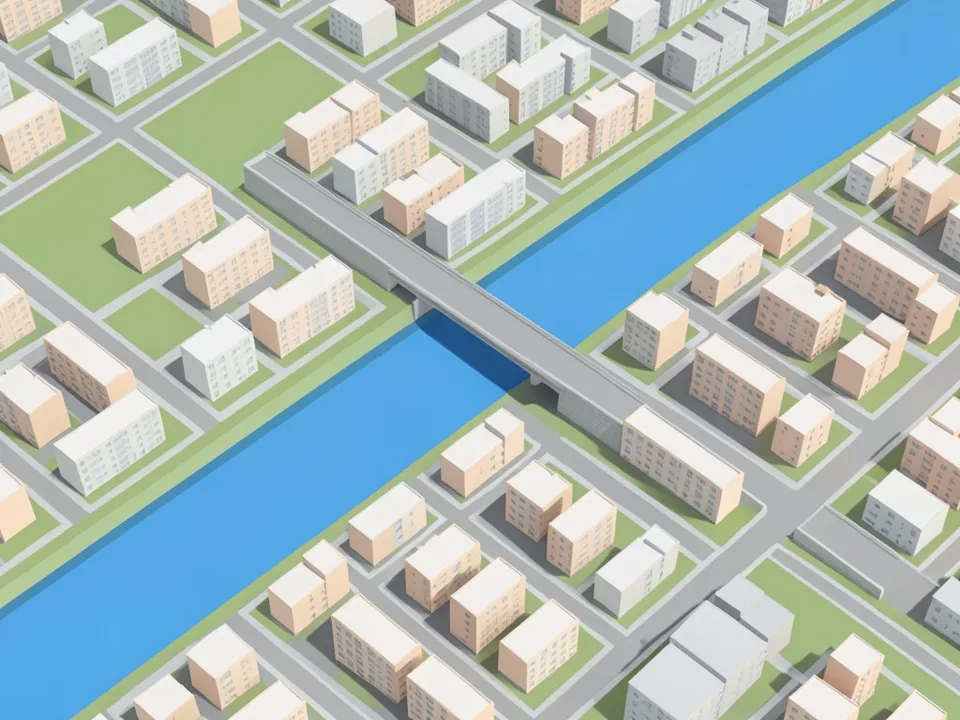
Before: flat-shaded district model
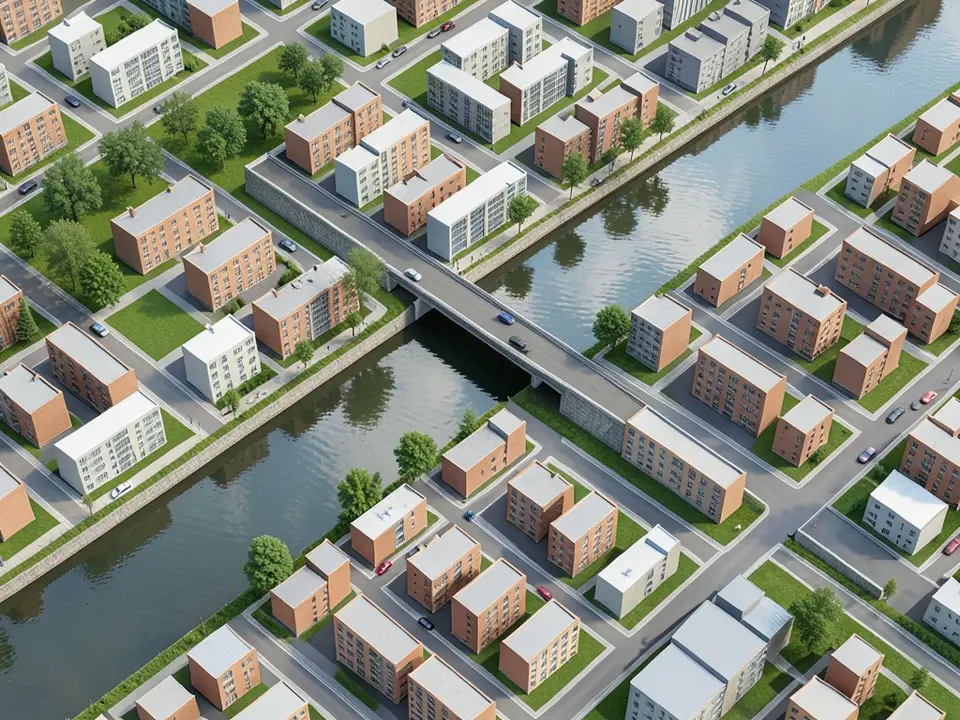
After: rendered: brick, trees, river
Who uses urban design rendering AI
- Urban designers and planners who need quick images of options for a client or a review.
- Landscape architects showing a public space or street with planting and people before detailed design.
- Architecture and planning students who need a presentable image of a massing model for a crit or competition board.
Free tier and plans
You need a free account to render. New accounts get 2 free renders, and free renders carry a watermark. In India this site does not include free renders, so a paid plan is needed there. Weekly, monthly and yearly plans for more renders without the watermark are on the pricing page.
ArchitecturesAI is an independent web tool and is not affiliated with or endorsed by the makers of SketchUp, Rhino or Revit. Those names are trademarks of their owners, used here only to describe the images people export from them.
Frequently asked questions
What makes urban design rendering different from architectural rendering?
Architectural rendering usually shows one building and its materials. Urban design rendering shows a block, street, square or district, so the focus is on public space, ground floors, trees and street life, and how new buildings sit in the existing city.
Which view should an urban design render use?
An aerial view explains the structure of a scheme; a street-level view shows what it feels like to walk through it. For a square or park, keep its edges in view.
Can it work from SketchUp, Rhino or Revit screenshots?
Yes. The tool only sees the JPG or PNG you upload, so a screenshot from SketchUp, Rhino, Revit or any other 3D program works, as does a clean perspective sketch. Nothing is installed or linked to your model.
Is an aerial render the same as a rendered site plan?
No. An aerial render is a perspective picture taken from above at an angle; a site plan is a scaled, top-down drawing. This tool renders views. It does not produce plans, coloured land-use maps or anything measured to scale.
Can an AI render be used for planning approval or public hearings?
Only as an illustrative image. It shows the character of a proposal but is not accurate enough for exact heights, daylight or fit with real surroundings. Follow your planning authority's rules for any views in a formal submission.
Can I add a new building or park to an existing aerial photo?
Not precisely in one step. Render mode repaints the whole image you upload, not just one part of it. To add one element, render first and then use Custom Action or Edit Image on the result with a sentence such as "add a small park with trees on the empty lot at the lower left". The AI decides the exact shape and position, so for a precise proposal model the new building as a box and render that.
What can an urban design render not prove?
It cannot prove scale, daylight and shadows, wind, traffic or footfall, or whether a scheme meets planning rules. The AI also adds trees, people, shops and sometimes whole buildings that were not in your model. Use your drawings and proper studies for anything that must be accurate.
Is it free to try?
Yes. After you sign in, a new account gets 2 free renders with a watermark. In India this site does not include free renders. Paid weekly, monthly and yearly plans are listed on the pricing page.
Render your next urban view
Export an aerial or street view of your massing model, upload it, choose Urban and a style, and download a photoreal image for your board, deck or workshop. Your first 2 renders on a free account are on us.
Render your urban viewRelated: Sketch to render AI · Floor plan to 3D render · Landscape design tool · Render Architecture tool · Pricing