3ds Max render AI
3ds Max AI Render: Turn a Viewport Grab into a Photoreal Image
Grab your 3ds Max viewport, save a clay render or a quick V-Ray or Corona draft, and upload it. ArchitecturesAI repaints it as a photo-like image with daylight, real-looking materials, sky and planting. This is not a 3ds Max plugin or a MAXScript: nothing is installed and nothing reads your .max file. The tool only sees the picture. It usually keeps your camera and massing but redraws finishes, colours and small items, so check the result against your model.
Render your 3ds Max viewSign in with Google or email to render. New accounts get 2 free renders (watermarked); free renders are not available in India on this site.
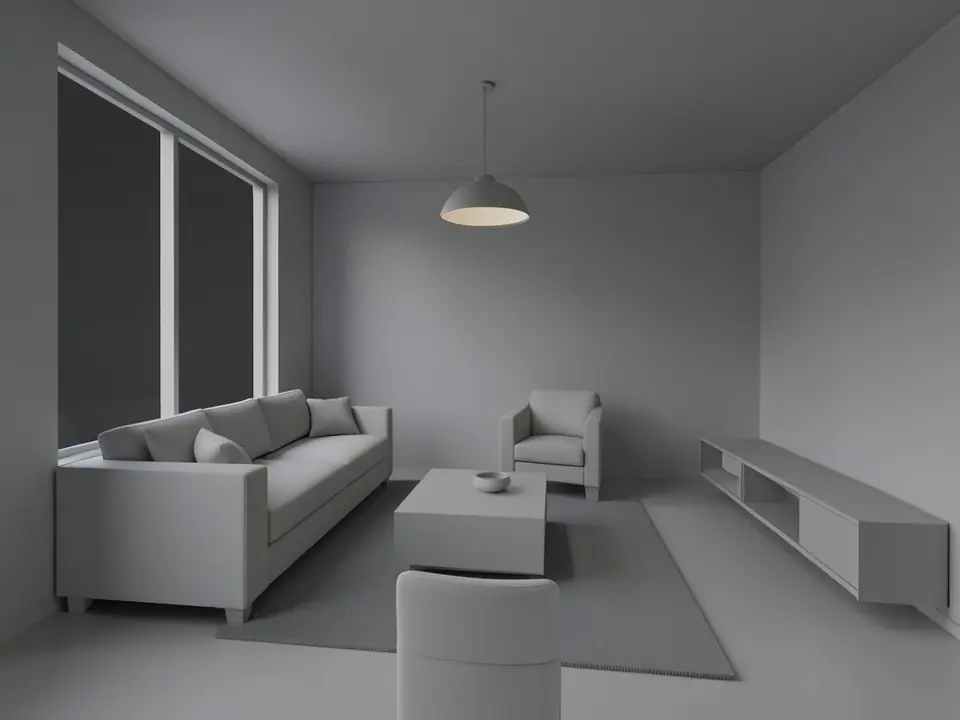
Before: 3ds Max style grey viewport (AI-drawn stand-in)
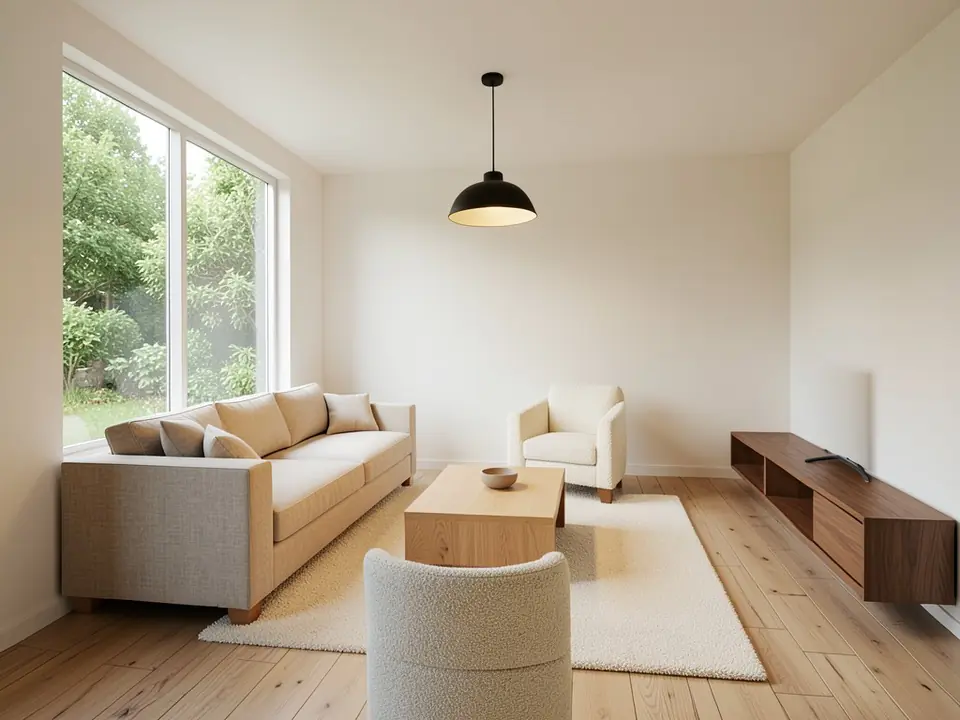
After: rendered: daylight, oak, linen
A browser tool, not a 3ds Max plugin
Some AI render products for 3ds Max are plugins that run inside the program. ArchitecturesAI is not one of them. You save an image of your view, upload it on this site and download a rendered image back. Nothing is installed, so it works with any 3ds Max version and with any render engine, or none.
That also sets the limits. The AI never sees your scene, your materials, your lights or your camera settings, only the pixels you upload. It does not write anything back into 3ds Max. If you need a render that matches every material and light in your scene, keep using your render engine; use AI for fast mood images and early options.
How to render a 3ds Max view with ArchitecturesAI
- In 3ds Max, set up the camera you want (see the tips below). Then choose Tools > Preview - Grab Viewport > Capture Still Image (in recent versions it is also in the [+] menu of the viewport under Create Preview). Click Grab and the snapshot opens in the Rendered Frame Window, where you can save it as a PNG or JPG. A clay render, a quick draft from your render engine or a plain screenshot of the viewport also works.
- Click "Render your 3ds Max view". The Render Architecture tool opens with Interior selected under Architecture Type and Modern under Style. Sign in with Google or email.
- Under "Please select an image", click Select Image and upload your PNG or JPG.
- Keep Interior for a room. For a building or a site view, like the villa example, choose Exterior, Residential or Villa under Architecture Type; there is also a 3D Model type. Then pick the Style closest to your design, such as Modern, Minimalist or Scandinavian (25 in total).
- Keep the default AI Model (Architectures AI Grok); the other models use more credits per render. Free accounts can only use Low quality (Medium and High are marked PRO). Press Generate Architecture and download the result.
- To change one thing, such as the facade material, or to try a dusk or night look, open Custom Action or Edit Image on the result and describe it in a sentence; each one uses credits. The render step itself has no time-of-day setting. The examples on this page ran directly on our image model, not through this tool, so your result will differ.
Viewport tips: getting a good picture out of 3ds Max
The AI only sees your picture and usually keeps your camera, so most of the work is choosing and cleaning up the view before you save it.
- Shading mode. In the viewport's shading label menu, Default Shading or a textured view gives the AI the most hints. Clay shows everything in a uniform terracotta colour and Flat Color drops the lighting; both are fine when you want the AI to pick the materials, as in the examples.
- Hide what is not the design. Turn off the home grid, safe frames, selection brackets and gizmos before you grab. A visible grid can be read as a floor pattern.
- Use a real camera. A camera view at eye height with a moderate lens looks most like a photo. The AI keeps the distortion of a very wide lens.
- Size. Aim for at least 1280x720 in landscape so small objects stay readable.
- A draft render beats a viewport. If you already have V-Ray, Corona or Arnold set up, a fast low-quality render with rough materials gives the AI better light and colour hints than a viewport grab.
- Colours as hints. The AI treats colours as hints: in the bedroom example it turned a desk asked for in oak the same walnut as the nightstands.
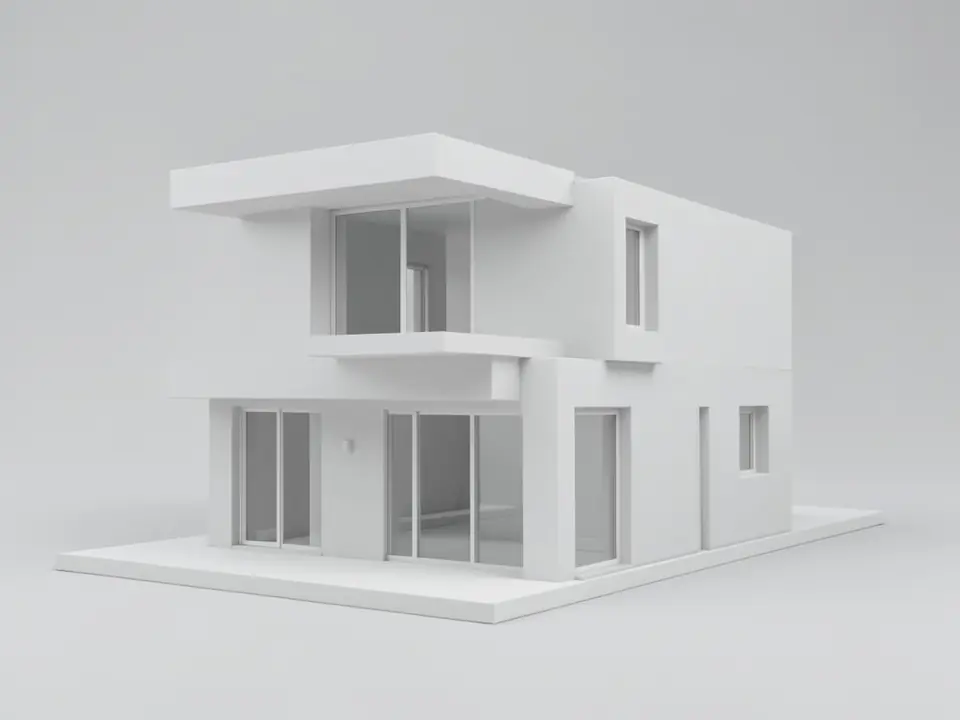
Before: 3ds Max style white clay render (AI-drawn stand-in)
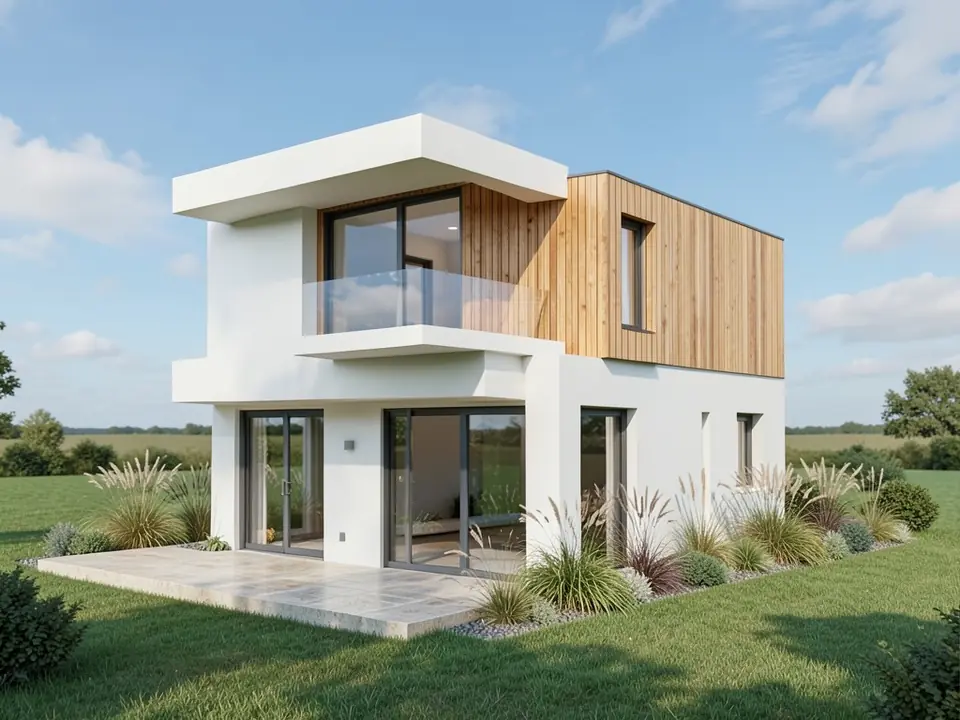
After: rendered: timber, glass, landscape
What the AI keeps and what it may change
Use this as a checklist when you compare a result with your model.
- Usually kept: the camera angle, room shape or building massing, window and door positions, roof slabs and cantilevers, and where large furniture stands, at roughly the same size.
- Often redrawn: wall and floor finishes, fabrics, joinery colour, frames, the view outside windows and the landscape around a building.
- Sometimes invented: balustrades, vents, small objects, extra planting, and changes to bases and plinths, as in the villa example.
- Never produced: a measured or lighting-accurate render, a .max file, or a render at a set time of day. Check sizes and light in 3ds Max itself.
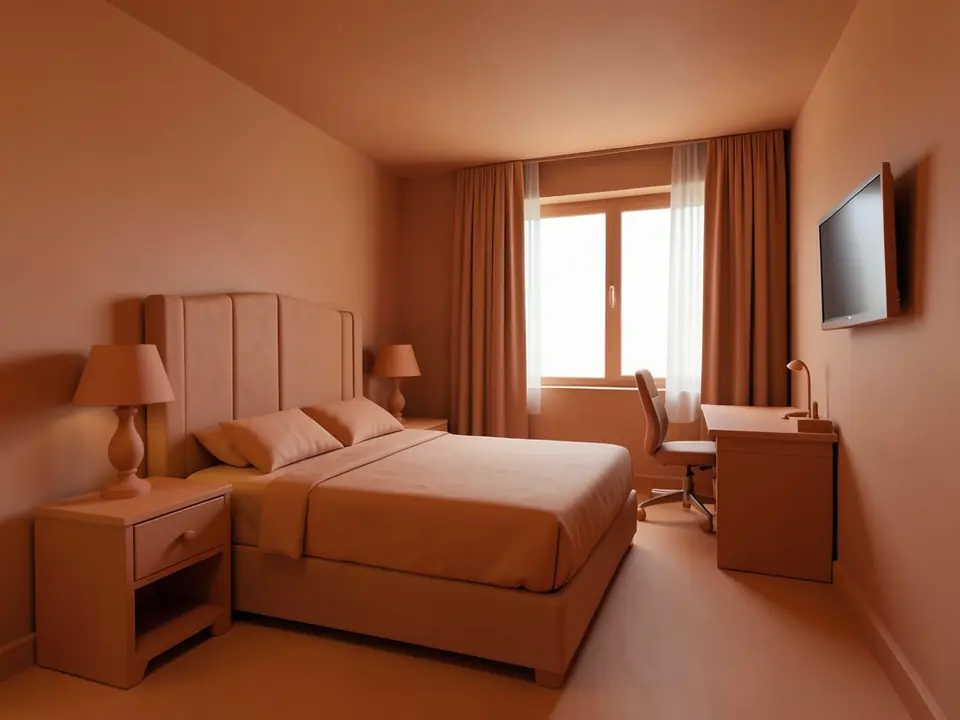
Before: 3ds Max style clay viewport (AI-drawn stand-in)
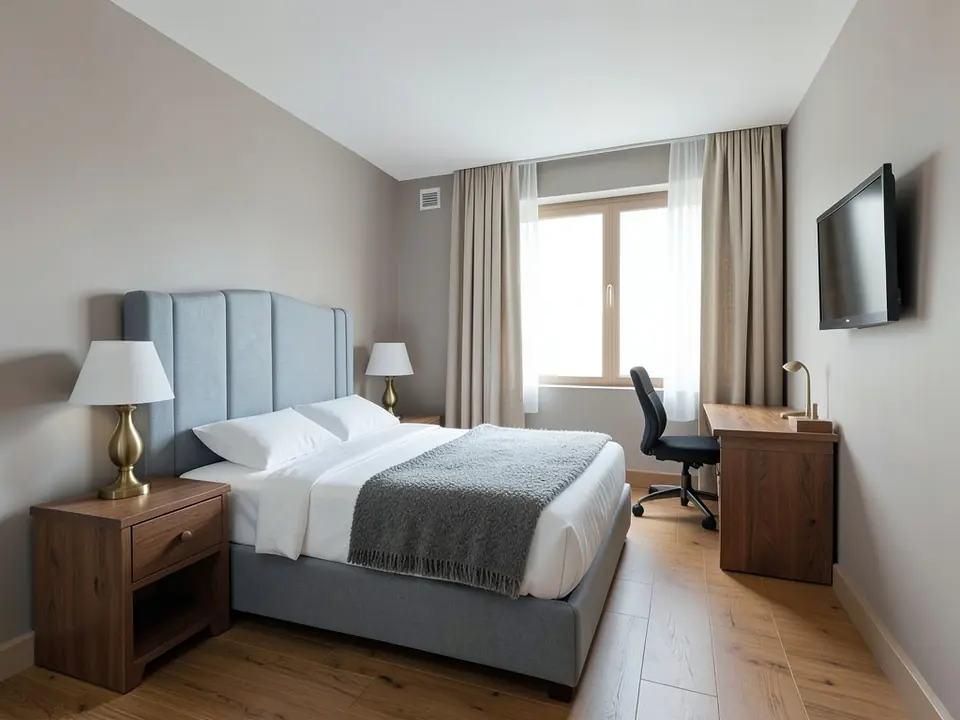
After: rendered: linen, walnut, brass
AI render or V-Ray, Corona and Arnold?
- Arnold, which ships with 3ds Max, and V-Ray or Corona, which are separate plugins from Chaos. They render your real geometry, materials and lights, and take setup, render time and usually a strong computer. Use them for final, accurate images.
- AI render on ArchitecturesAI. No setup and no GPU on your side: you upload in the browser and the image is generated online. It is not faithful to your exact materials and is not a lighting study. Use it for early client ideas, quick options and mood images.
- Already have a finished render? To sharpen or add realism to an existing V-Ray or Corona image rather than restyle it, see the AI render enhancer.
Who uses it
- Architects and interior designers who model in 3ds Max and want a quick picture for a client before materials and lights are set up.
- Architecture and visualisation students who need a presentable image of a model for class or a portfolio.
- Freelance 3D artists who want to test several material and style ideas on one camera before a full render.
Free tier and plans
You need a free account to render. New accounts get 2 free renders, and free renders carry a watermark. In India this site does not include free renders, so a paid plan is needed there. Weekly, monthly and yearly plans for more renders without the watermark are on the pricing page.
ArchitecturesAI is an independent web tool and is not affiliated with or endorsed by Autodesk. 3ds Max is a trademark of Autodesk, Inc., used here only to describe the images people export from it. V-Ray and Corona are trademarks of Chaos. The "before" images on this page are AI-drawn stand-ins, not 3ds Max screenshots.
Frequently asked questions
Is there a 3ds Max plugin?
No. ArchitecturesAI is a web tool, not a plugin or MAXScript. You save an image of your view, upload it in the browser and download the render. Nothing is installed in 3ds Max and nothing reads your .max file.
Do I need V-Ray or Corona?
No. A viewport grab or a clay render is enough. If you already use V-Ray, Corona or Arnold, a quick low-quality draft can give the AI better hints about light and materials.
What should I upload, and in which format?
A PNG or JPG of a camera view: a viewport grab (Tools > Preview - Grab Viewport > Capture Still Image), a clay render, a draft render or a screenshot. Hide the grid, gizmos and safe frames, and keep the main objects fully in frame.
Does it work with my 3ds Max version?
Yes. The tool only sees the image you upload, so the 3ds Max version and the render engine do not matter.
Will it keep my camera and design?
It usually keeps the camera, massing, openings and where large furniture stands. It often changes finishes and colours and can add details such as balustrades, vents or plants. Compare the result with your model.
Do I need a powerful GPU?
No. The image is generated online; you only need a browser to upload and download.
Can I get dusk, night or golden hour views?
The render step has no time-of-day setting and usually gives a daytime look. You can ask for a dusk or night version afterwards with Custom Action or Edit Image, which uses credits; results vary.
Is it free to try?
Yes. After you sign in, a new account gets 2 free renders with a watermark. In India this site does not include free renders. Paid weekly, monthly and yearly plans are listed on the pricing page.
Turn your next 3ds Max viewport into a photo-like render
Grab your 3ds Max viewport or save a clay render, upload it, choose Interior or Exterior and a style, and download the result. Your first 2 renders on a free account are on us.
Render your 3ds Max viewRelated: Revit to render · SketchUp to render · Rhino render AI · AI render enhancer · Sketch to render AI · Render Architecture tool · Pricing