Archicad to render
Turn Your Archicad 3D View into a Photoreal Render
Save the Archicad 3D window as a JPEG or PNG (or take a screenshot), upload it, and ArchitecturesAI turns it into a photographic image with real surfaces, daylight, sky, landscape and furniture. Your camera angle, roof shape, floors and openings stay where you modeled them. There is no add-on, no graphics card and no CineRender or Twinmotion setup, and it works with any Archicad version that can save a 3D view as an image. You get a picture back, not a PLN or IFC file.
Render your Archicad viewSign in with Google or email to render. New accounts get 2 free renders (watermarked); free renders are not available in India on this site.
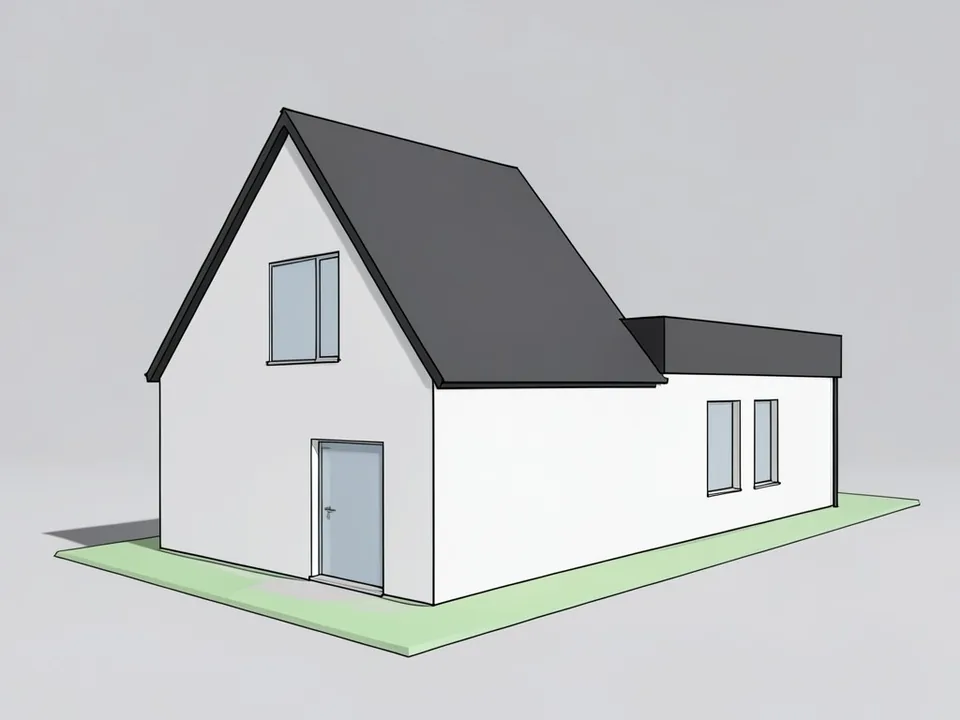
Before: Archicad-style shaded 3D view
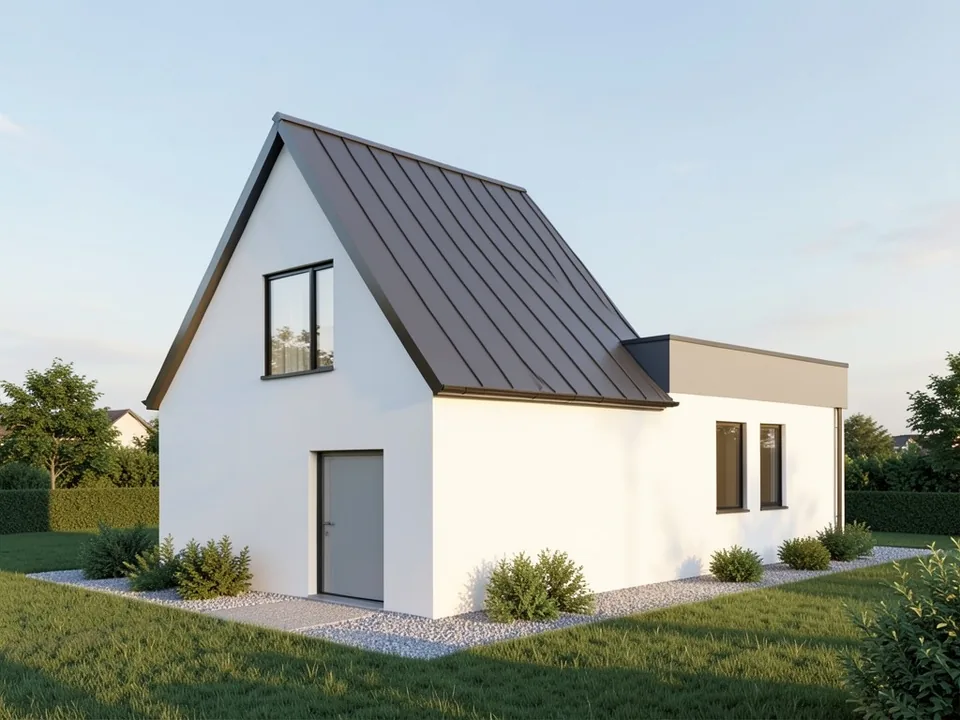
After: photoreal exterior render
From the Archicad 3D window to a finished image
The Archicad 3D window shows your model clearly, but it does not look like a photograph. A presentation image normally means a rendering pass: textured surfaces, sun and lights, a camera, and then CineRender inside Archicad or a trip to Twinmotion, Lumion or Enscape. For an early option or a quick client update it can take longer than the design change itself.
ArchitecturesAI works from a picture of the 3D window instead of the model. The AI reads the roof planes, wall faces, slab edges, windows and doors in the image and paints over them with materials, light, landscape, people or furniture that suit the building type and style you pick. The perspective and proportions come from your view, so the result still shows your project.
It is not a plugin and it does not connect to Archicad. No BIM data, PLN, IFC, surfaces or library parts come back, and your model is not changed. You download a still image for a client email, a design review or a competition board.
How to render an Archicad view with ArchitecturesAI
- Open the 3D window and set up a perspective from the angle you would photograph the building. Save it as a view in the View Map if you want the same camera again later.
- With the 3D window active, use File > Save As and choose JPEG or PNG. A screenshot works too; crop out the toolbars and palettes so only the model is left.
- Click "Render your Archicad view". The Render Architecture tool opens with Residential and Modern selected. Sign in with Google or email.
- Upload your image and choose the building type that fits, such as Residential, Villa, Commercial, Office, Interior, Facade or 3D Model (25 types in total).
- Choose a style, such as Modern, Contemporary, Minimalist, Scandinavian, Mediterranean, Sustainable or Rustic (25 styles in total).
- Press Generate, then save the result. To change one thing, such as a cladding color or the time of day, use Edit Image or Custom Action on the result and describe it in a sentence. Each change runs a fresh render and spends credits.
Set up the 3D window before you save
The AI can only use what it sees, so a tidy view beats a busy one:
- Put the camera at eye level. A perspective from standing height (around 1.6 to 1.7 m) looks like a real photo.
- Keep vertical lines vertical. Converging verticals from a tilted camera make the render look distorted.
- Basic surfaces are enough. A shaded view with plain colors, a white-model view or a hidden-line view all work. Different colors for roof, walls and glass help the AI tell them apart.
- Model the ground. A simple terrain mesh and a few library trees tell the AI where the site is and how big the building is; a model floating in space gets a guessed setting.
- Hide what is not part of the building: turn off door and window opening lines (Model View Options), and switch off 3D Cutaway unless you want walls sliced open.
- Keep shadows soft or off. The AI adds its own sun, and very dark cast shadows can be read as dark materials.
- Save at a high resolution. Make the 3D window large so the image is about 1,600 pixels wide or more; thin railings and mullions get lost in small images.
- Leave a margin around the building. A wing cut off by the frame stays cut off in the render.
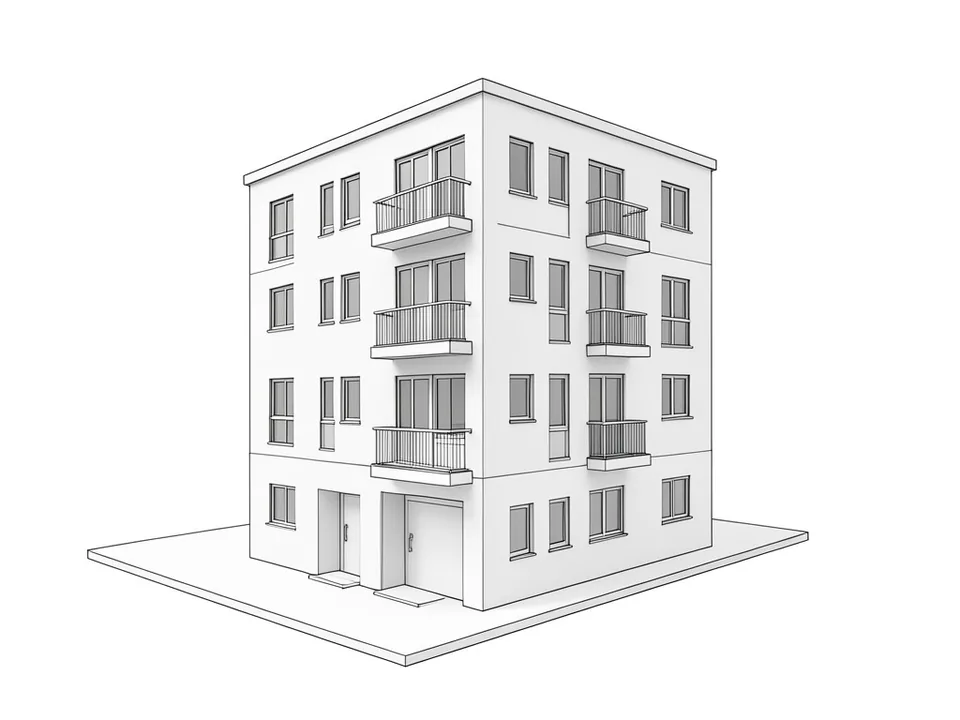
Before: Archicad-style white model view
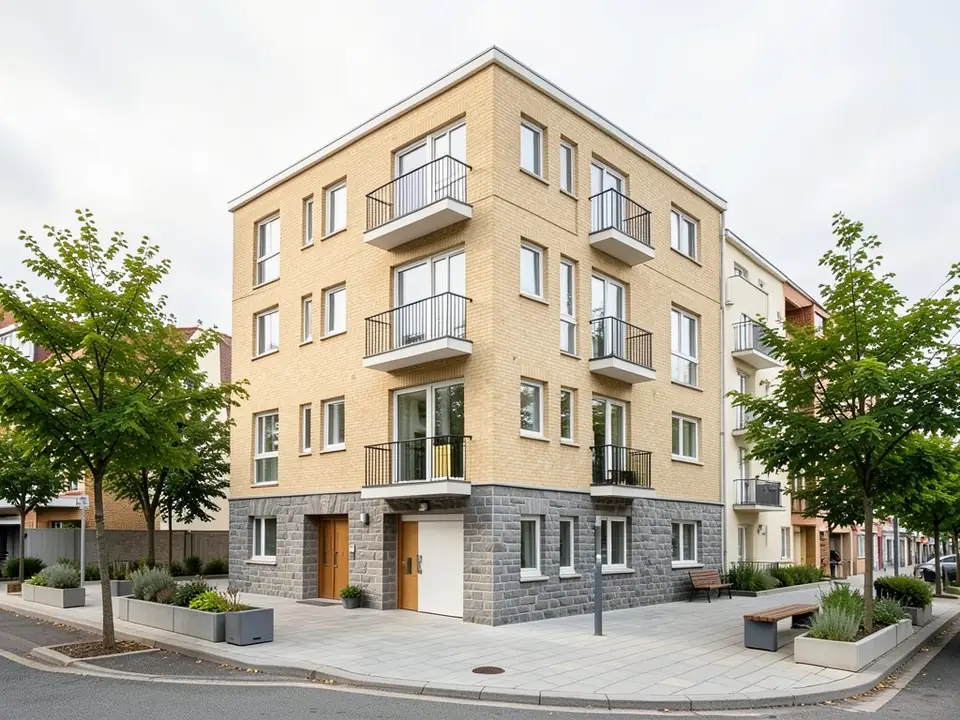
After: street-corner render
Interior views, sections and elevations
For interiors, place a perspective camera inside the room, save the 3D window and choose the Interior building type. An empty room gets furnished in your chosen style, as the living and dining room example shows. If you placed library furniture, the AI usually follows that layout and gives it real fabrics, wood and light.
You can also save a section or elevation window as an image and upload it with the Section or Elevation building type. They are flat drawings, so the result looks like a rendered elevation rather than a photo. For a photographic image, start from a perspective 3D view.
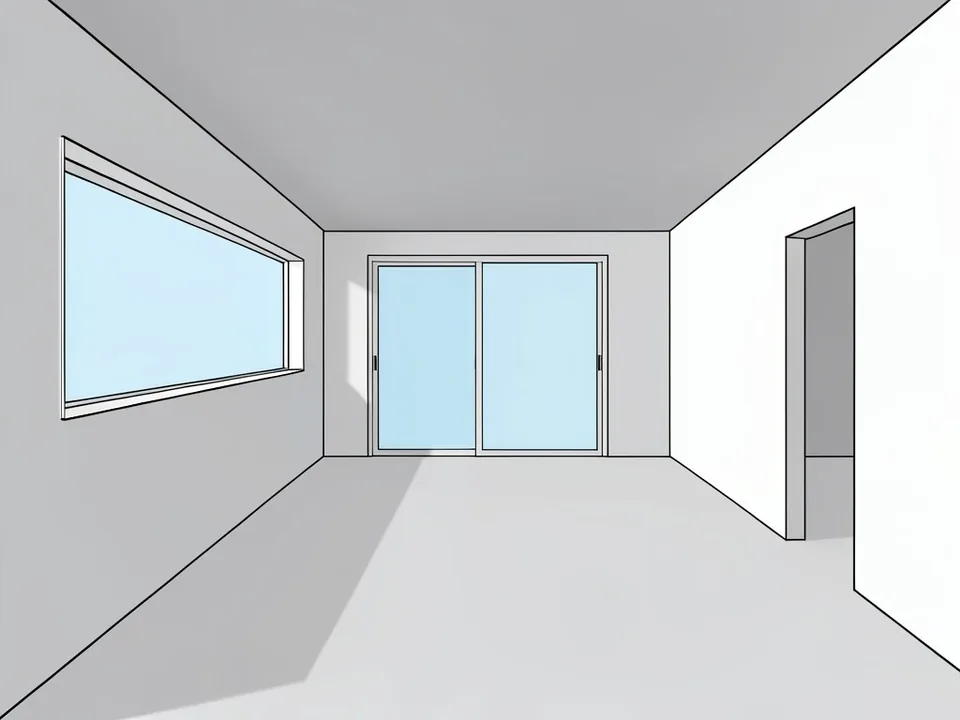
Before: Archicad-style interior view
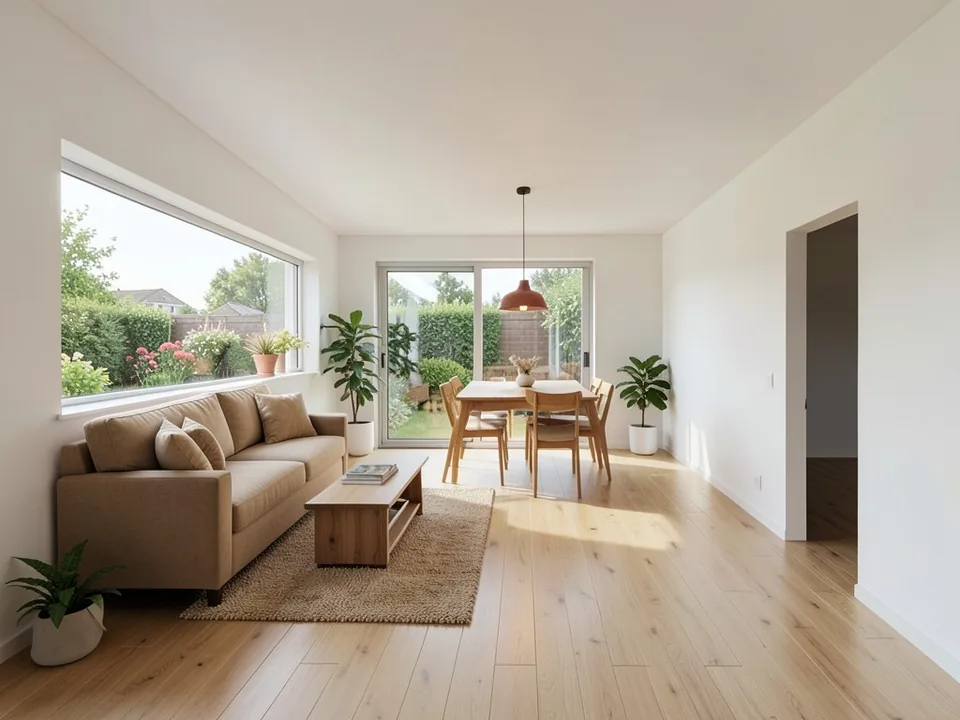
After: furnished interior render
Any Archicad version, nothing to install
Because the input is an ordinary image, your Archicad version and license make no difference to ArchitecturesAI. There is no add-on to update when you upgrade. It runs online, so a laptop without a dedicated graphics card is fine.
Graphisoft also offers its own AI Visualizer inside Archicad. That is a built-in Archicad feature with its own requirements; ArchitecturesAI is an independent web tool, and you can use either one or both.
Who renders Archicad views this way
Try one saved view in a few styles, agree a direction, then make the final images in your usual renderer.
- Architects who want a believable image of a scheme for a first client meeting, before a full rendering setup.
- Small practices without a render specialist or a high-end workstation.
- Students who build their projects in Archicad and need presentable images for juries and portfolios.
- Builders, developers and homeowners who get a grey 3D view from their architect and want to see it as a photo.
AI render or CineRender and Twinmotion?
An AI render is quick and needs no surfaces, lights or scene, but it makes some choices for you. Planting, cars, people or furniture that are not in your PLN can appear, and a fine detail may be drawn its own way. Do not rely on it for exact colours, finishes, lettering or dimensions; two runs of the same view will not match exactly.
CineRender, Twinmotion, Lumion or Enscape render your real model, so materials, lighting, repeat views and animations are under your control, at the cost of setup time and a stronger computer. Many architects use AI images for early options and a render engine once the design is settled.
Free tier and plans
You need a free account to render. New accounts get 2 free renders, and free renders carry a watermark. In India this site does not include free renders, so a paid plan is needed there. Weekly, monthly and yearly plans for more renders without the watermark are on the pricing page.
ArchitecturesAI is an independent web tool and is not affiliated with or endorsed by Graphisoft. Archicad is a trademark of Graphisoft, used here only to describe the images people save from it.
Frequently asked questions
How do I render an Archicad model with AI?
Set up a perspective in the 3D window, then use File > Save As to save it as a JPEG or PNG, or take a screenshot. In ArchitecturesAI, open Render Architecture, add that file, set the building type and style, and click Generate. The result is a photographic version of the camera you saved in Archicad.
How should I set up the 3D window before saving?
Use an eye-level perspective with straight verticals, simple surface colors, a modeled terrain and a few trees, and no helper lines, bounding boxes or cutaway planes. Keep shadows soft or off, and save at about 1,600 pixels wide or more.
Do I need an Archicad add-on, a GPU or CineRender settings?
No. ArchitecturesAI is not a plugin. It runs in your web browser and works from an image, so nothing is installed in Archicad, no graphics card is needed and no render scene has to be set up.
Will the render keep my Archicad geometry?
Mostly, yes. The camera, massing, roof planes, storey lines and doors and windows in your saved view are what the AI builds on, as the three examples here show. Thin elements such as railings and mullions can come out simplified, and it may add planting or furniture, so check it against your plans and run it again if a part drifts.
Which Archicad versions does it work with?
Any version that can show a 3D view and save it as an image, or that you can take a screenshot of. The tool only sees the picture, so the Archicad release and license type make no difference.
Can I render Archicad interiors, sections and elevations?
Yes. For interiors, save a perspective from a camera inside the room and choose the Interior building type. A saved section or elevation is accepted as well, but it comes back looking like a coloured drawing because it has no depth; for a photo-like result, use a 3D perspective.
Do I get a BIM model, PLN or IFC file back?
No. You download a rendered image. No PLN, IFC, BIM data or 3D file is created, nothing is sent back to Archicad, and your model is not changed.
Is it free to try?
Yes. After you sign in, a new account gets 2 free renders with a watermark. In India this site does not include free renders. Paid weekly, monthly and yearly plans are listed on the pricing page.
Render your next Archicad view
Save a view from the 3D window, upload it, set a building type and a style, and download the result for your client. Your first 2 renders on a free account are on us.
Render your Archicad viewRelated: Sketch to render AI · Floor plan to 3D render · Render Architecture tool · Pricing