Chief Architect rendering
Chief Architect AI Rendering: From 3D View to Photoreal
Export a camera view, overview or elevation from Chief Architect as a JPG or PNG, upload it, and ArchitecturesAI turns it into a photographic image with real siding, brick, stone, roofing, cabinets, light and landscape. The walls, roof lines, windows and doors in your view are what the AI builds on. You do not need to assign materials, set up lights or wait for a ray trace, and nothing is installed on your computer. You get a picture back, not a plan file.
Render your Chief Architect viewSign in with Google or email to render. New accounts get 2 free renders (watermarked); free renders are not available in India on this site.
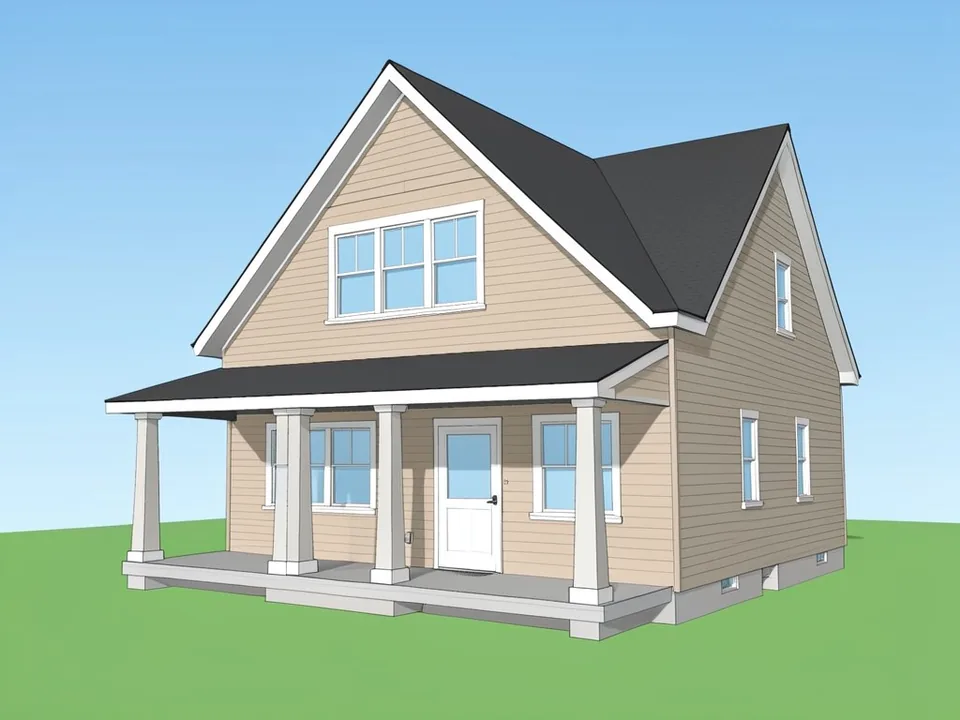
Before: Chief-style standard camera view
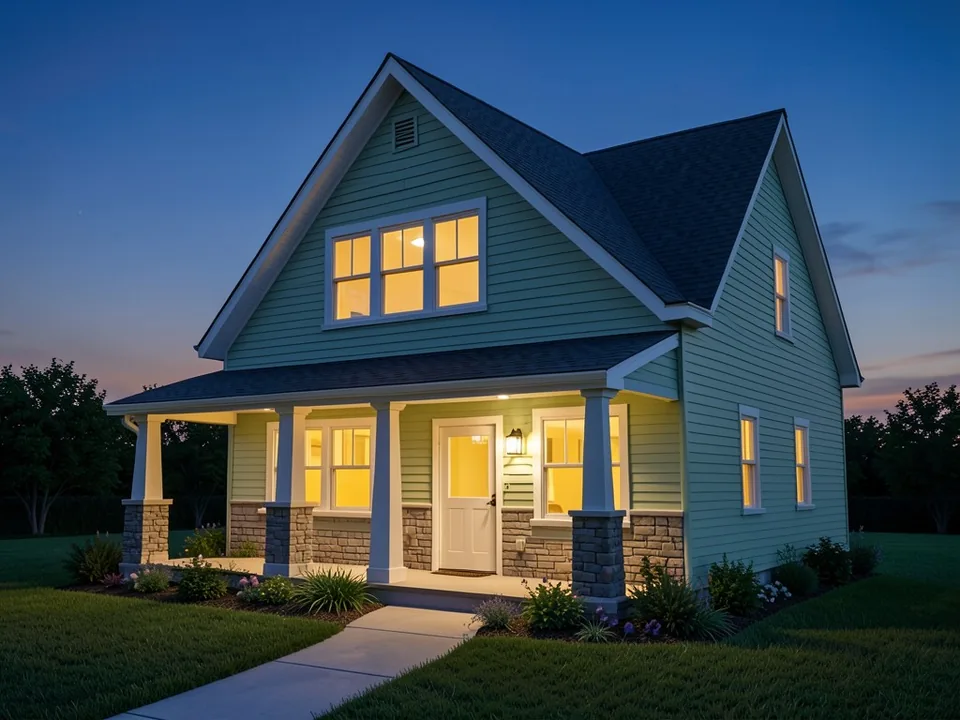
After: photoreal dusk exterior
Why Chief Architect users add an AI render step
Chief Architect is built for residential design: walls, roofs, windows, cabinets and framing come out of the plan, and a camera view is only a click away. The default Standard rendering technique is quick, but it looks like a model, with flat colours and even light. For a sales meeting or a remodel pitch, many designers want something closer to a photograph.
Inside Chief, that means the Physically Based technique or a ray trace, plus materials that look right, lights placed where they belong and settings for exposure and global illumination. Physically Based views use hardware ray tracing, so they need a graphics card that supports it, and a high-quality final image can take a while to finish. Some designers send the model on to a separate renderer such as D5 for the last step.
ArchitecturesAI is a lighter option for early and mid-stage images. You export the view you already have, the AI reads its walls, roof planes, openings and cabinet runs, and paints realistic materials, sky, planting and light over them. Users on the ChiefTalk forum have been trying the same idea with general chatbots; a tool built for architecture keeps the job focused on your building.
How to render a Chief Architect view with AI
- Open the plan and create the view you want: a camera view from where a person would stand, a perspective overview, or a front elevation. Save it as a saved view if you want the same camera again later.
- With that view active, use File > Export > Export Picture and save it as a JPG or PNG. In the Export Picture dialog, set a size of about 1,600 pixels wide or more. A screenshot of the view window also works if you crop away the toolbars.
- Click "Render your Chief Architect view". The Render Architecture tool opens with Residential and Modern selected. Sign in with Google or email.
- Upload your picture and pick the building type that fits: Residential, Villa or Exterior for a house, Interior for a kitchen or living room, Elevation for a front view (25 types in total).
- Pick a style, such as Traditional, Modern, Contemporary, Rustic, Mediterranean or Scandinavian (25 styles in total).
- Press Generate and download the result. To steer one thing, such as the siding colour, the time of day or the countertop, open Custom Action or Edit Image on the result and describe the change in a sentence; you can paste the prompts printed under each example there, but the tool runs a different model from the one that made these examples, so your result will differ. Each change runs a new render and uses credits.
Get the camera view right before you export
The AI only sees the picture, so what you show it decides what you get back:
- Stand the camera at eye height. A view from about 5 to 5.5 feet looks like a photo taken from the street or the kitchen doorway; a high bird's-eye overview reads like a model.
- Keep verticals straight. Tilting the camera up makes walls lean, and the render keeps that lean.
- Standard rendering is enough. You do not need a Physically Based or ray-traced view first; the AI replaces flat colours anyway. Different colours for roof, walls, trim and glass help it tell them apart.
- Show the ground. A terrain with a driveway or walk tells the AI where the house sits; a model floating on nothing gets a guessed setting.
- Hide what is not part of the building: dimensions, notes, the north arrow, layer clutter and any selected-object handles.
- Export large. Thin trim, railings, grid bars and porch posts get lost in small pictures.
- Leave a margin. A garage or wing cut off by the frame stays cut off in the render.
- Put the details you care about in the model. If a window, column or roof line matters to the client, it should be visible in the view, not left for the AI to invent.
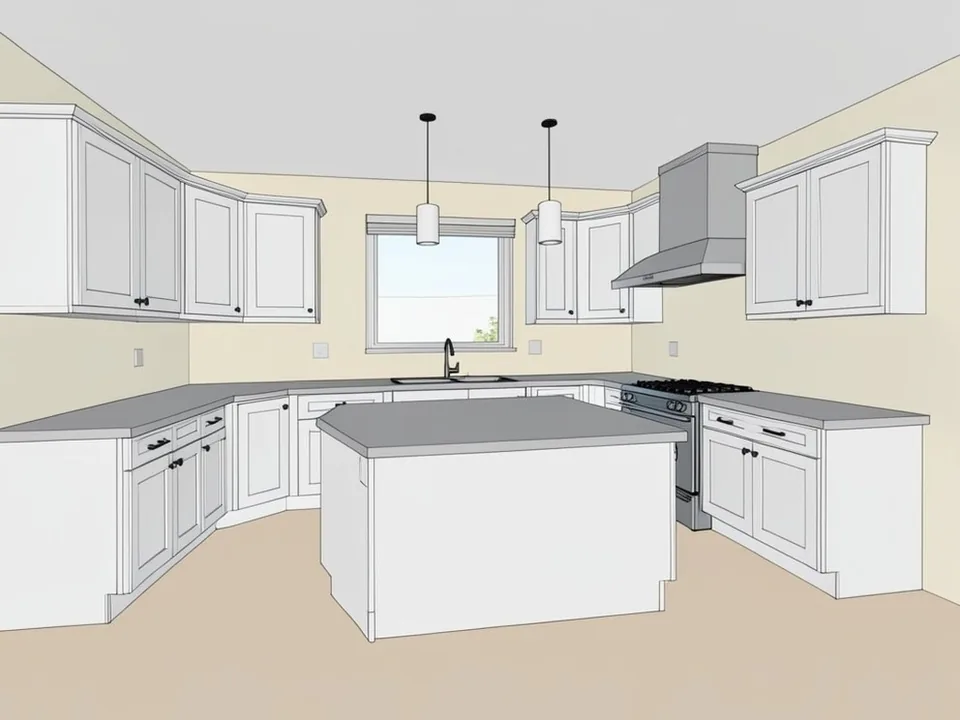
Before: Chief-style kitchen camera view
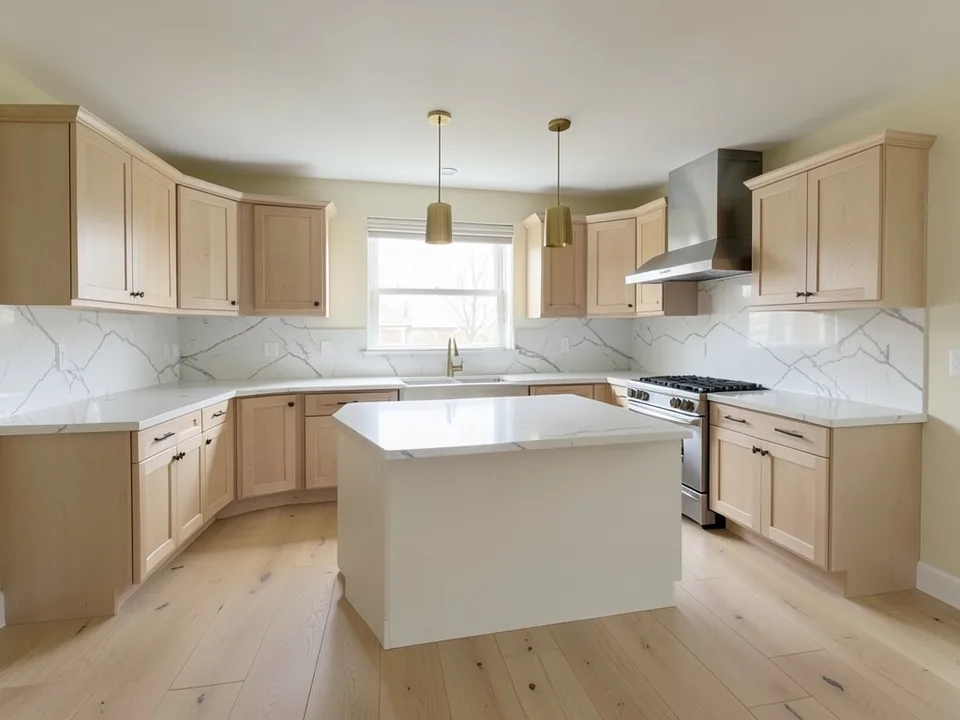
After: photoreal kitchen
Kitchens, interiors and elevations
Kitchen and bath design is a big part of Chief Architect work, and interior views are a good fit. Place an interior camera, export it, and choose the Interior building type. Cabinet runs, the island, appliances and windows in your view give the AI a fixed layout; the finishes, hardware and light are what change. If you leave the room empty, the AI furnishes it in the style you pick.
Front and side elevations work too. An elevation is flat, so with the Elevation building type the result can look like a coloured, rendered drawing. To get a straight-on photo like the white brick example above, add a sentence like the one printed under it in Custom Action. For a photo with depth, start from a perspective camera view instead.
For a floor plan, export the plan view and use the floor plan to 3D render tool instead; it is set up for plans rather than camera views.
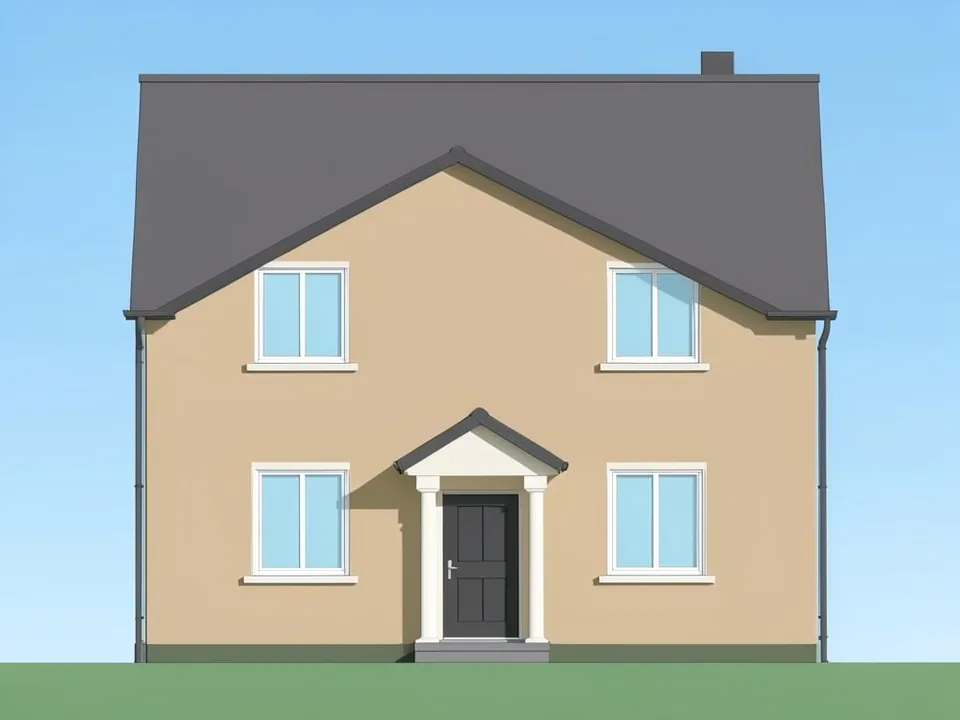
Before: Chief-style front elevation
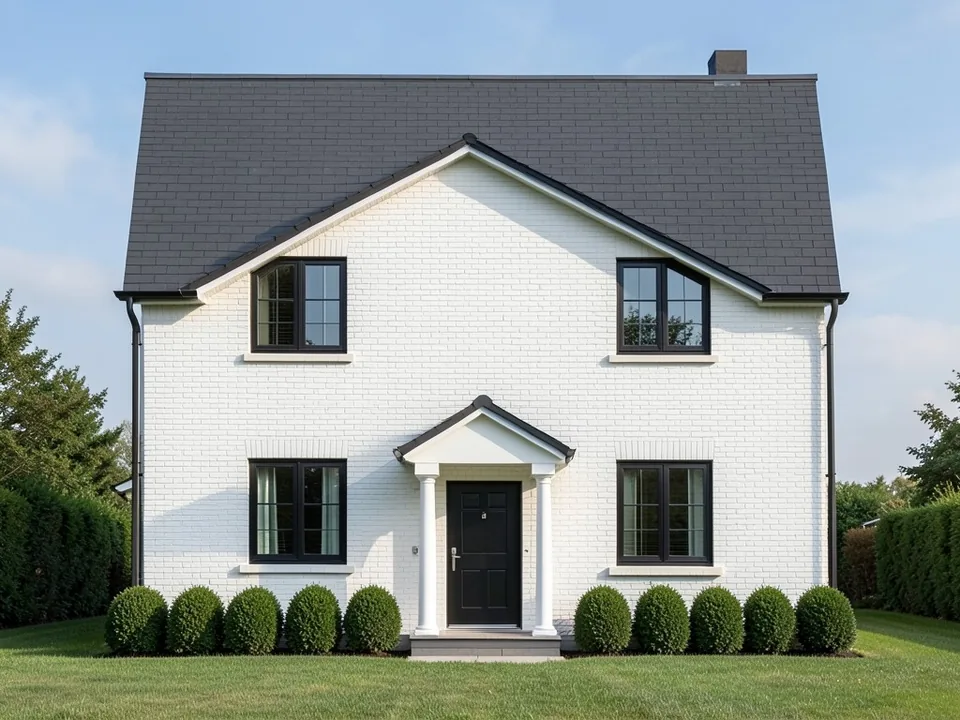
After: white brick, black windows
Remodel pitches and Home Designer
If the house already exists, you can skip the model and upload a photo of it, then use the same building types and styles to show new siding, paint, roofing or windows. Many remodelers do both: a photo for the "before" the homeowner knows, and a Chief view for the new design.
The same export steps apply to Home Designer, Chief Architect's consumer line, since it also exports views as pictures. ArchitecturesAI only sees the image, so the program version and licence make no difference. Nothing is installed and no plugin is updated when you upgrade Chief.
What the AI changes, and what to check
The AI keeps the camera, the massing and most openings, but it is not reading your plan file. It can add things you did not model, as the captions above show: a gable vent, curtains, grid bars, trees, hedges. Chief users testing AI tools have reported a window added to a side wall and a roof read the wrong way. Two runs of the same view will not match exactly.
So treat the result as a design image, not a construction document. Check window counts, roof pitches and trim against your plans before you send it, and run it again or edit it if a part has drifted. When the design is settled and you need exact materials, repeatable views or a walkthrough, render the model in Chief or your usual renderer.
Who uses it
- Residential designers who want a client-ready exterior or kitchen image the same day the plan changes.
- Builders and remodelers who show homeowners several finish options from one Chief view.
- Kitchen and bath designers who want photographic finishes without assigning every material.
- Designers on laptops or older computers without a graphics card that supports Physically Based rendering.
Free tier and plans
You need a free account to render. New accounts get 2 free renders, and free renders carry a watermark. In India this site does not include free renders, so a paid plan is needed there. Weekly, monthly and yearly plans for more renders without the watermark are on the pricing page.
ArchitecturesAI is an independent web tool and is not affiliated with or endorsed by Chief Architect, Inc. Chief Architect and Home Designer are trademarks of Chief Architect, Inc., used here only to describe the images people export from them.
Frequently asked questions
Can I render Chief Architect views without ray tracing?
Yes. Open the camera view or elevation, use File > Export > Export Picture to save it as a JPG or PNG, and upload it to the Render Architecture tool. A Standard rendering view is enough; there are no materials, lights or ray trace settings to set up, and no graphics card is needed.
Will the AI change my layout?
Mostly not. The camera, walls, roof planes, windows, doors and cabinet runs in your picture are what it builds on, as the three examples show. It can add or redraw small things, such as a vent, grid bars in windows or extra planting, and it can occasionally misread a roof or add an opening, so check the result against your plans and run it again if a part drifts.
Which Chief Architect views work best?
An eye-level camera view or a perspective overview, exported large with straight verticals. Interior camera views work well for kitchens and baths. Elevations work but can come back looking like a rendered drawing unless you ask for a photo. For a floor plan, use the floor plan to 3D render tool.
Does it work with Home Designer Pro?
Yes. The tool works from any exported image or screenshot, so Home Designer views work the same way as Chief Architect views, whatever the version.
Can I use a photo of the existing house instead?
Yes. Upload a photo of the house as it is today and choose a building type and style, or describe the change in Custom Action. That is useful for remodel pitches where the homeowner wants to see their own house with new siding, paint or windows.
Can I change materials, colours or the time of day?
Yes. Pick a style before you generate, then use Custom Action or Edit Image on the result and describe the change, for example white brick and black windows, or dusk with the windows lit. Each change is a new render and uses credits.
Do I get a Chief Architect file back?
No. You download an image. No plan file, materials or 3D data are created, nothing is sent back to Chief Architect, and your plan is not changed.
Is it free to try?
Yes. After you sign in, a new account gets 2 free renders with a watermark. In India this site does not include free renders. Paid weekly, monthly and yearly plans are listed on the pricing page.
Render your next Chief Architect view
Export a camera view or elevation, upload it, pick a building type and a style, and download a photoreal image for your client. Your first 2 renders on a free account are on us.
Render your Chief Architect viewRelated: Sketch to render AI · Floor plan to 3D render · Render Architecture tool · House extension design AI · Pricing