Free tool
SketchUp Shortcuts
SketchUp ships with a short list of default shortcuts, and most of them are a single letter: Space for Select, L for Line, R for Rectangle, P for Push/Pull, M for Move and Q for Rotate. Search the list below, switch between Windows and Mac, and learn the modifier keys that make drawing faster.
Find a SketchUp shortcut
| Command | Windows | Note |
|---|---|---|
| Select | Space | Spacebar activates the Select tool. |
| Lasso Select | Shift + Space | Freehand selection. |
| Paint Bucket | B | Apply materials. |
| Eraser | E | Hold Shift and click a line to hide it instead of erasing it. |
| Line | L | Type a number and press Enter (Windows) or Return (Mac) for an exact length. |
| Rectangle | R | |
| Circle | C | Type a number to set the radius right after drawing. |
| 2 Point Arc | A | |
| Move | M | Select first, then tap M. |
| Push/Pull | P | |
| Rotate | Q | |
| Scale | S | |
| Offset | F | |
| Tape Measure | T | |
| Make Component | G | |
| Back Edges | K | |
| Search | Shift + S | Search for any tool or command. |
| Orbit | O, or click and drag the middle button | On a three button mouse, hold the scroll wheel and drag to orbit. |
| Pan | H, or Shift + middle button drag | |
| Zoom | Z, or scroll wheel | |
| Zoom Extents | Shift + Z | Fits the whole model in the window. |
| Copy while moving | Tap Ctrl | A plus sign appears beside the cursor. Tap again for stamp (multiple) copies. |
| Lock the current direction | Hold Shift | Hold it when the line or move turns the color of the axis you want. |
| Lock to the red axis | Right arrow | Right locks Red. |
| Lock to the green axis | Left arrow | |
| Lock to the blue axis | Up arrow | |
| Lock parallel or perpendicular | Down arrow | Locks to an inferenced edge or face (the magenta inference). |
| Toggle linear inferences (Line tool) | Alt | Press after the first click, before the second. |
| Free the Rotate protractor | Alt | Lets you move the protractor center while keeping the drawing plane. |
| Confirm a typed measurement | Enter | |
| Undo | Ctrl + Z |
31 of 31 shortcuts shown. Keys follow the Default Keyboard Shortcuts page of SketchUp Help.
SketchUp keyboard shortcuts list: the default tool keys
These are the defaults listed on the Default Keyboard Shortcuts page of SketchUp Help. The tool letters are the same on Windows and Mac. Highlighted keys on the diagram below have a default tool.
| Tool | Key | Tool | Key |
|---|---|---|---|
| Select | Space | Offset | F |
| Lasso Select | Shift + Space | Tape Measure | T |
| Paint Bucket | B | Orbit | O |
| Eraser | E | Pan | H |
| Line | L | Zoom | Z |
| Rectangle | R | Zoom Extents | Shift + Z |
| Circle | C | Make Component | G |
| 2 Point Arc | A | Back Edges | K |
| Move | M | Search | Shift + S |
| Push/Pull | P | Rotate | Q |
| Scale | S |
Tools that are not in this list, such as Follow Me or Section Plane, have no default key. You can add one yourself (see the custom shortcuts steps below).
Modifier keys that speed up drawing and moving
The one-letter keys start a tool. The modifier keys change how the tool behaves while you use it. These are the ones worth learning first.
| What you want | Windows | Mac |
|---|---|---|
| Copy while moving (tap, then click) | Ctrl | Option |
| Stamp several copies | Tap Ctrl again | Tap Option again |
| Lock the direction you are drawing in | Hold Shift | Hold Shift |
| Lock to the red, green or blue axis | Right, Left or Up arrow | Right, Left or Up arrow |
| Lock parallel or perpendicular | Down arrow | Down arrow |
| Toggle linear inferences in Line tool | Alt | Command |
| Hide a line with the Eraser | Shift + click | Shift + click |
| Undo | Ctrl + Z | Command + Z |
A good way to remember the arrows: right locks red, left locks green, up locks blue. Shift locks whichever direction the tool is already showing, so if you are drawing along blue and hold Shift, the blue inference stays locked.
SketchUp shortcuts on Windows vs Mac
The single-letter tool shortcuts do not change between platforms. What changes is the modifier key: Ctrl on Windows is usually Command on Mac, and the copy toggle while moving is Ctrl on Windows but Option on Mac. Alt on Windows maps to Command for the Line tool inference toggle and the Rotate protractor.
Two other differences matter. You confirm a typed measurement with Enter on Windows and Return on Mac. And importing and exporting a shortcut file is Windows only; on a Mac you set shortcuts by hand on each computer.
How to set custom shortcuts in SketchUp
- Windows: choose Window > Preferences. Mac: choose SketchUp > Settings (older Mac versions have a slightly different interface).
- Select Shortcuts in the left sidebar.
- Find the tool in the Function list. Type a word such as "zoom" in the search box to filter the list.
- Click the command, then type your key combination in the Add Shortcut box. Do not press Enter, because that erases what you typed.
- Click the plus button. If the keys are already used, SketchUp warns you: choose Keep Original or Replace.
- To go back to the defaults, click Reset All.
A custom shortcut cannot start with a number, and it cannot use keys your operating system reserves. Shift, Alt (Option on Mac) and Ctrl (Command on Mac) can be combined with other keys. On Windows you can use Export and Import on the Shortcuts panel to move your shortcuts to another computer.
SketchUp for Web shortcuts
SketchUp for Web uses defaults that are nearly identical to the desktop version. Hover over a tool in the toolbar, or use Search, to see its key. For custom keys in the web version, Shift, Alt and Option work as modifiers, but Ctrl and Command are not available.
A SketchUp model before and after rendering
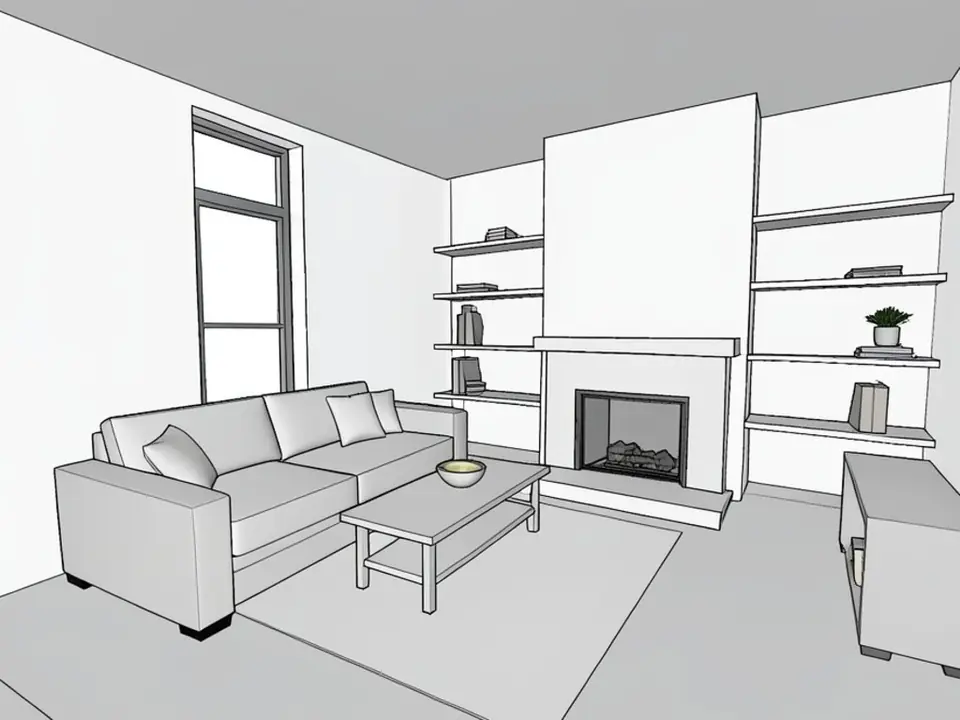
The shortcuts above get the model built; this is what the next step can look like. The left image is a plain SketchUp-style view of a living room, the right one is the same view after our AI render: wood floor, soft daylight and real materials, with the sofa, shelves and fireplace kept where they were.


Turn your SketchUp model into a render
Once the model is built, upload a screenshot of it and our AI renders it with materials, light and context in seconds. No plug-in or render setup needed.
Try SketchUp to renderSign in with Google or email to render. New accounts get 1 free render (watermarked).
Frequently asked questions
What are the most useful SketchUp shortcuts?
Space (Select), L (Line), R (Rectangle), P (Push/Pull), M (Move), Q (Rotate), T (Tape Measure) and Shift + Z (Zoom Extents). Add the arrow-key axis locks and you can draw most models without touching the toolbar.
How do I copy in SketchUp with a shortcut?
Select the object, tap M for Move, then tap Ctrl on Windows or Option on Mac. A plus sign appears next to the cursor. Click to place the copy. Tap the key again for stamp mode, which places several copies.
What is the shortcut for Push/Pull in SketchUp?
P. It is the same on Windows and Mac.
Are SketchUp shortcuts the same on Mac and Windows?
The tool letters are the same. The modifier keys differ: Ctrl on Windows is generally Command on Mac, and copy while moving uses Ctrl on Windows and Option on Mac.
How do I change a keyboard shortcut in SketchUp?
Open Window > Preferences > Shortcuts on Windows, or SketchUp > Settings > Shortcuts on Mac. Select the command, type the new keys in the Add Shortcut box and click the plus button. Reset All restores the defaults.
How do I lock an axis in SketchUp?
While drawing or moving, press the Up arrow for blue, Left arrow for green or Right arrow for red. Holding Shift locks whichever direction the tool is currently showing.
More free tools for architects and designers
- SketchUp to render
- Revit keyboard shortcuts
- Revit to render
- ArchiCAD to render
- Tile calculator
- Roof pitch calculator
- Architectural scale converter
- Cost to build a house calculator
- King size bed dimensions
- Standard door sizes
- Standard window sizes
- Bathroom vanity height
- Two car garage dimensions
- 1200 sq ft house plans
- Free house plans
Sources: SketchUp Help (help.sketchup.com): Default Keyboard Shortcuts, Creating and Editing Shortcuts, Importing and Exporting Shortcuts, Introducing Drawing Basics and Concepts, Moving Entities Around, Using Shortcuts in SketchUp for Web.