Elevation border design
Elevation Border Design: See Bands and Window Borders on Your Front
Elevation borders are the bands and frames that outline a house front: a darker band along the parapet, a band at each floor line, a border around each window and door, a plinth band at the bottom. In India and Pakistan they are often painted in a darker shade of the wall colour, or raised in plaster, and they are the cheapest way to make a plain front look finished. People search for elevation border designs when they repaint or finish a house. This AI elevation border design tool starts from a picture: upload a photo of your house front, a sketch or a clay model, and ArchitecturesAI renders it in the same view; then describe where the borders go and in which colour. The result is an idea picture. It is not a paint specification, a shade card or a quote.
Upload your house front photoSign in with Google or email to render. New accounts get 1 free render (watermarked).
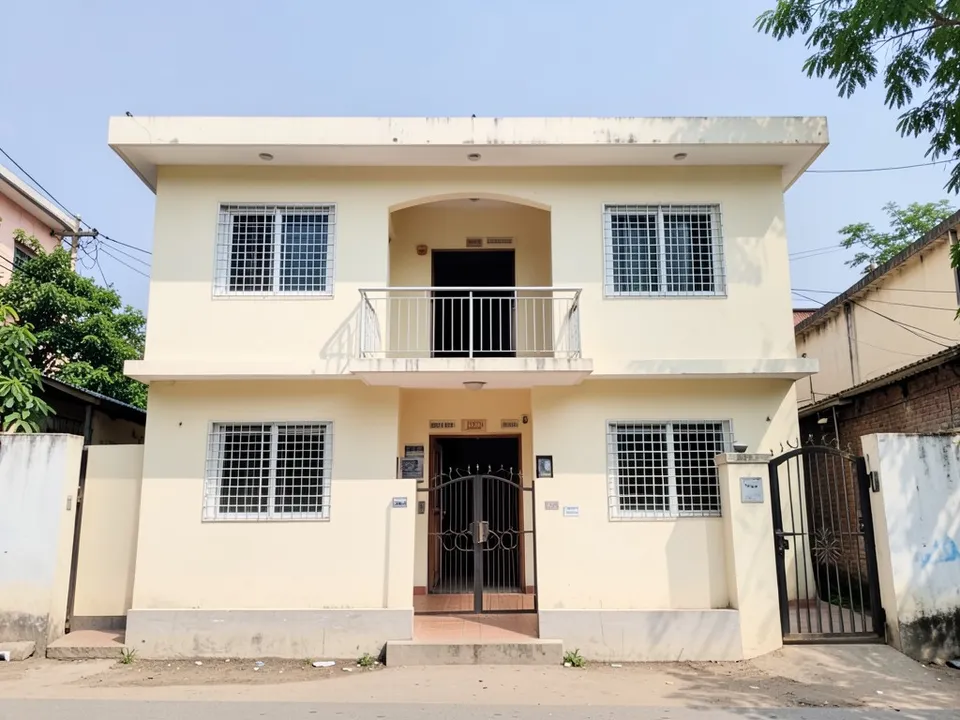
Before: plain cream front, no borders (AI-drawn stand-in for a photo)
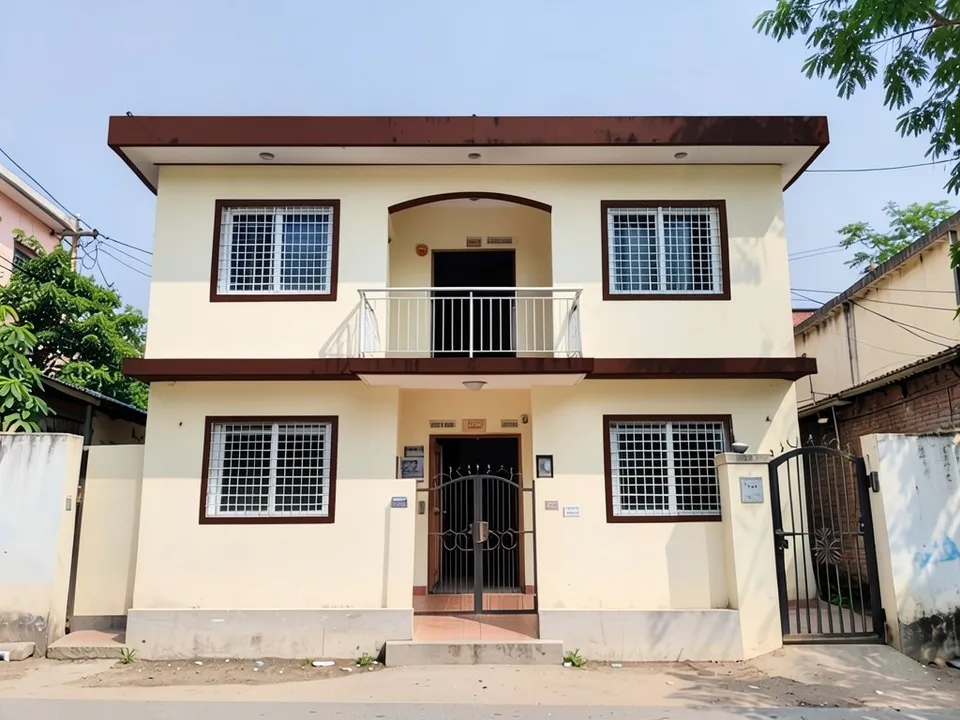
After: dark brown parapet, floor and window borders
What people mean by elevation borders
Berger Paints' border colour ideas and Asian Paints' front elevation colour combinations describe the same idea:
- A band along the top of the parapet that finishes the roof line.
- Bands at each floor line, often on the sunshade or chajja edge.
- Borders around windows and doors, painted or raised in plaster.
- A darker plinth band at the bottom that also hides dirt.
- A darker or contrasting shade of the main colour frames a light base, for example brown on cream or grey on white.
How to try an elevation border design with ArchitecturesAI
- In the editor above, the mode is Render Architecture, the type is Residential and the style is Modern. This mode has no prompt box: you start from an image.
- Under Select Image, upload a JPG or PNG: a daylight photo of the front of your house taken from the street, or a sketch, a clay model or a screenshot from your 3D software.
- Click Generate. Free accounts can only use Low quality (Medium and High are marked PRO). Sign in with Google or email when asked.
- To steer the result, click Edit Image on it (the box is called Edit Instructions) or use Custom Action, and describe where the borders go, how wide they are and their colour and what must stay the same. Each edit is another render and uses credits. Run it a few times, since every result differs.
- The three examples below ran directly on our image model with the written instructions shown. They did not go through the editor above, so your own results will differ.
Painted borders on a plain front
A photo of the front is enough. Our run added a parapet band, a floor band and window borders and kept the cream walls exactly as they were.
Before: plain cream front, no borders (AI-drawn stand-in for a photo)
After: dark brown parapet, floor and window borders
Raised grey borders, or coloured bands with white window borders
Borders can be a darker shade or a contrast. The model may add extra strips or skip a band, so name each one you want.
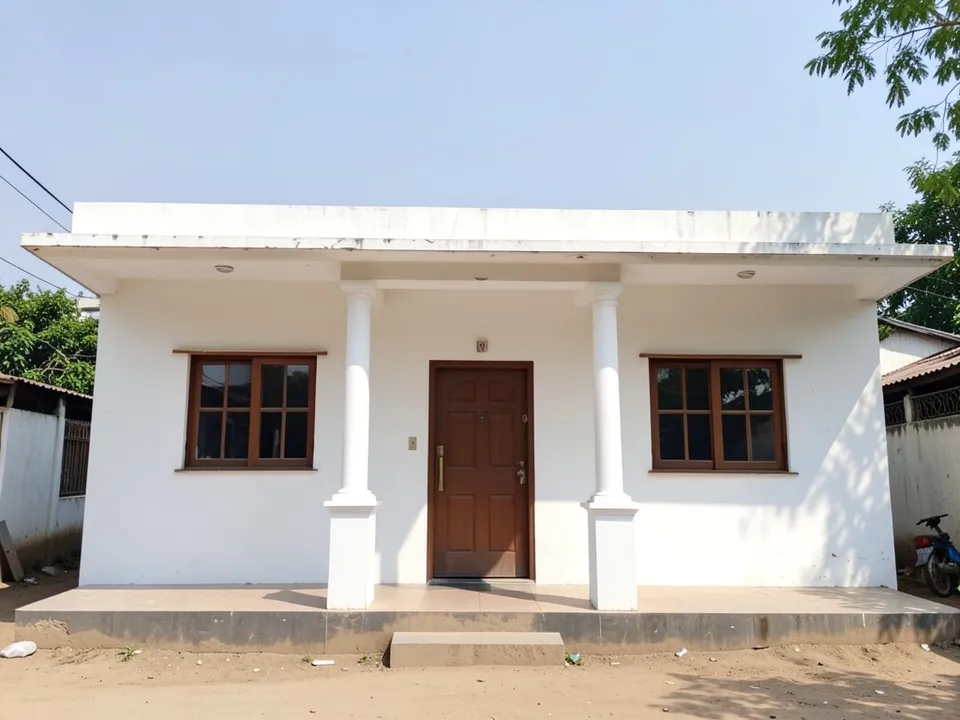
Before: plain white single storey front (AI-drawn stand-in for a photo)
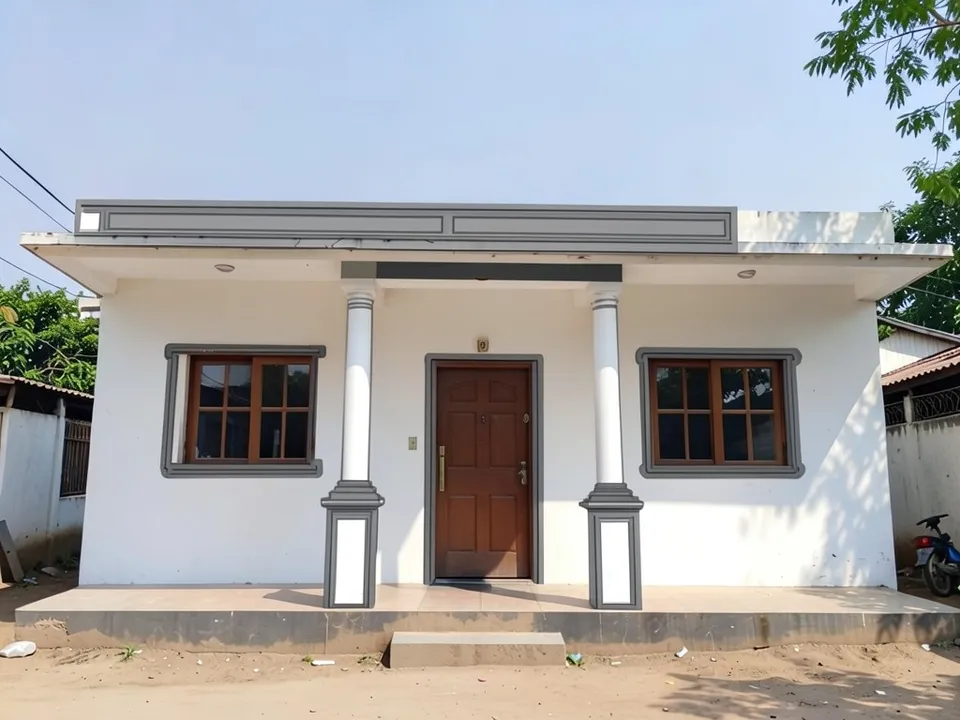
After: grey parapet band and window borders
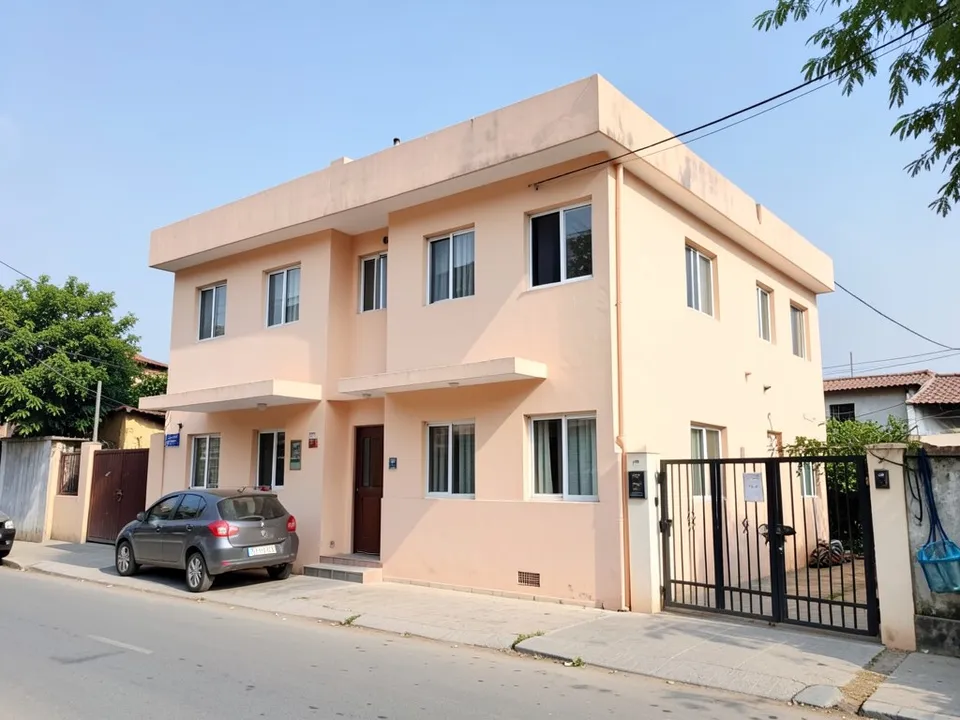
Before: plain peach front (AI-drawn stand-in for a photo)
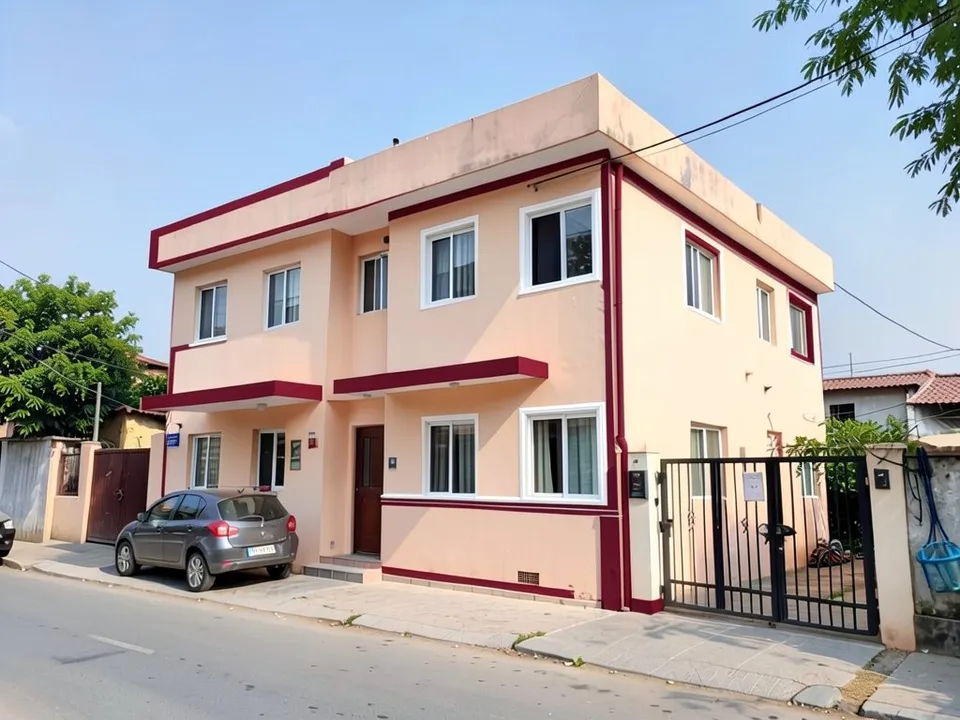
After: maroon bands with white window borders
What the AI keeps and what it may change
- Usually kept: the camera angle, the house shape, the windows and the main wall colour.
- Often different from what you asked: plinth bands and how far a border runs.
- Often added without being asked: corner strips and extra lines.
- Never produced: floor plans, structure, cost estimates or approval drawings.
Changing more than the borders?
The exterior wall texture page covers textured finishes, the elevation tiles page covers tiled fronts, and the parapet wall and chajja pages cover the roof line and sunshades.
Free tier and plans
You need a free account to render. New accounts get 1 free render, and free renders carry a watermark. Weekly, monthly and yearly plans for more renders without the watermark are on the pricing page.
The houses on this page are AI-drawn stand-ins, not real. Each example was run directly on the model, not through the tool above.
Frequently asked questions
What is an elevation border?
A band or frame that outlines part of a house front: along the parapet, at a floor line, around a window or door, or at the plinth.
Which colour is best for elevation borders?
Usually a darker shade of the main colour, or a contrast such as brown on cream, grey on white or maroon on peach. Try a few on your own photo and compare.
Is there a text box in the editor?
The prompt box exists only in Architecture Generator mode. The editor above opens in Render Architecture, where you upload an image and change the result with Edit Image (Edit Instructions) or Custom Action.
Does it give me paint codes?
No. It shows a picture. Match the colours with a shade card from your paint brand.
Is it free to try?
Yes. After you sign in, a new account gets 1 free render with a watermark, in Low quality. Paid weekly, monthly and yearly plans are listed on the pricing page.
See borders on your house
Upload a photo of your house front, compare a few border colours, and take the best one to your painter. Your first render on a free account is on us.
Upload your house front photoRelated: Front elevation design · Parapet wall design · Exterior wall texture design · Elevation tiles design · Chajja design · Window grill design · Render Architecture tool · Pricing · AI house design generator · AI elevation louvers design